Flight Center
Scheduled Flights
To create a scheduled flight you first click on Flight Center, you can then click on the Select button next to the Scheduled Flights button.
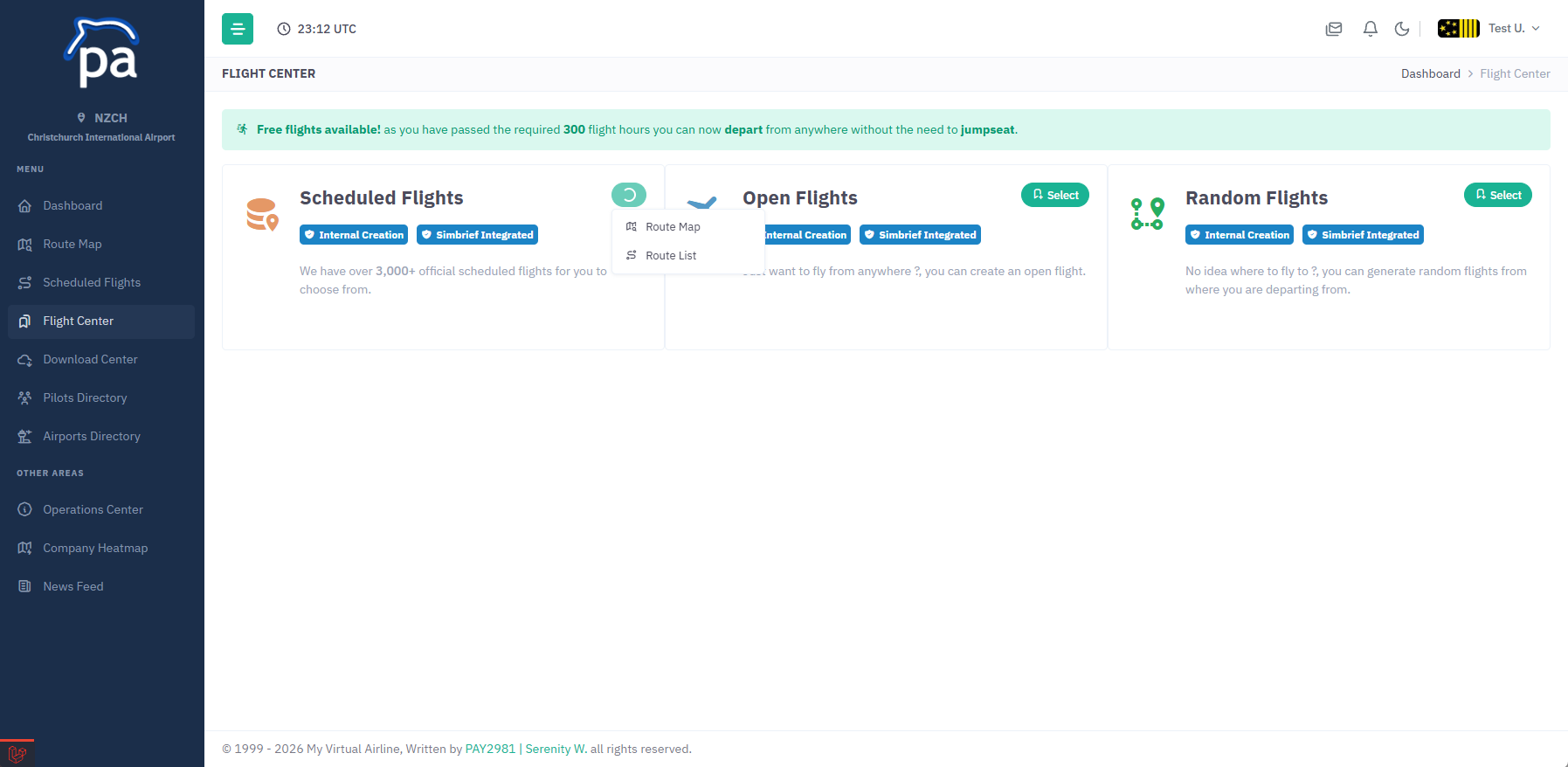
You have two options, Route Map or Route List these will allow you to either see our map locations or a list of available flights.
Once you have chosen a location click on the View Details button to load the flight information.
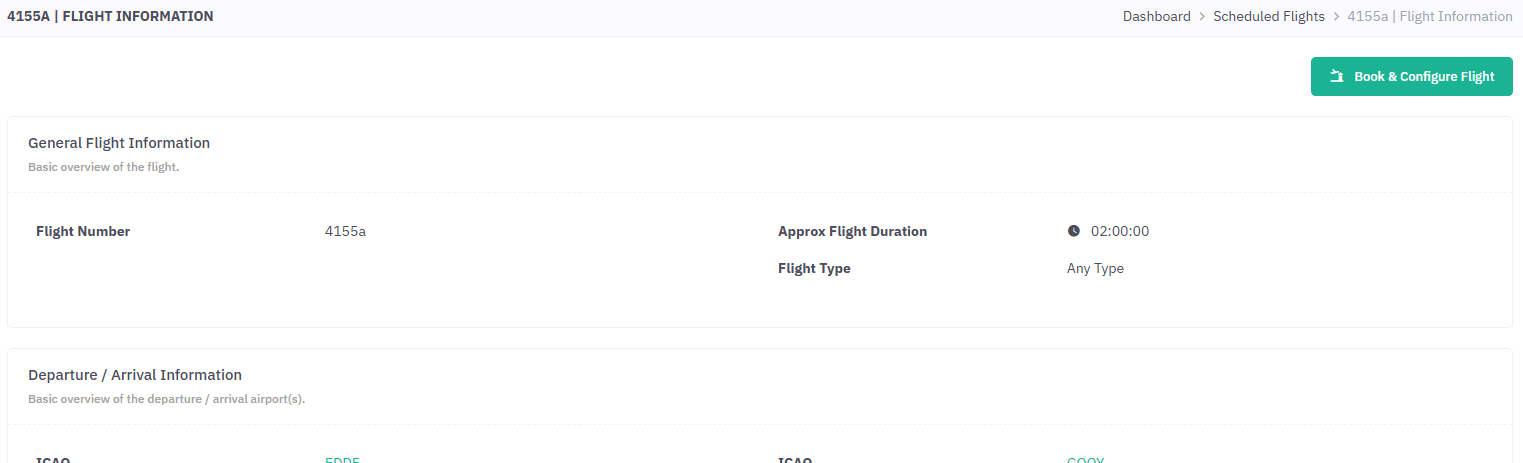
When your ready to book the flight click on the Book & Configure Flight button.
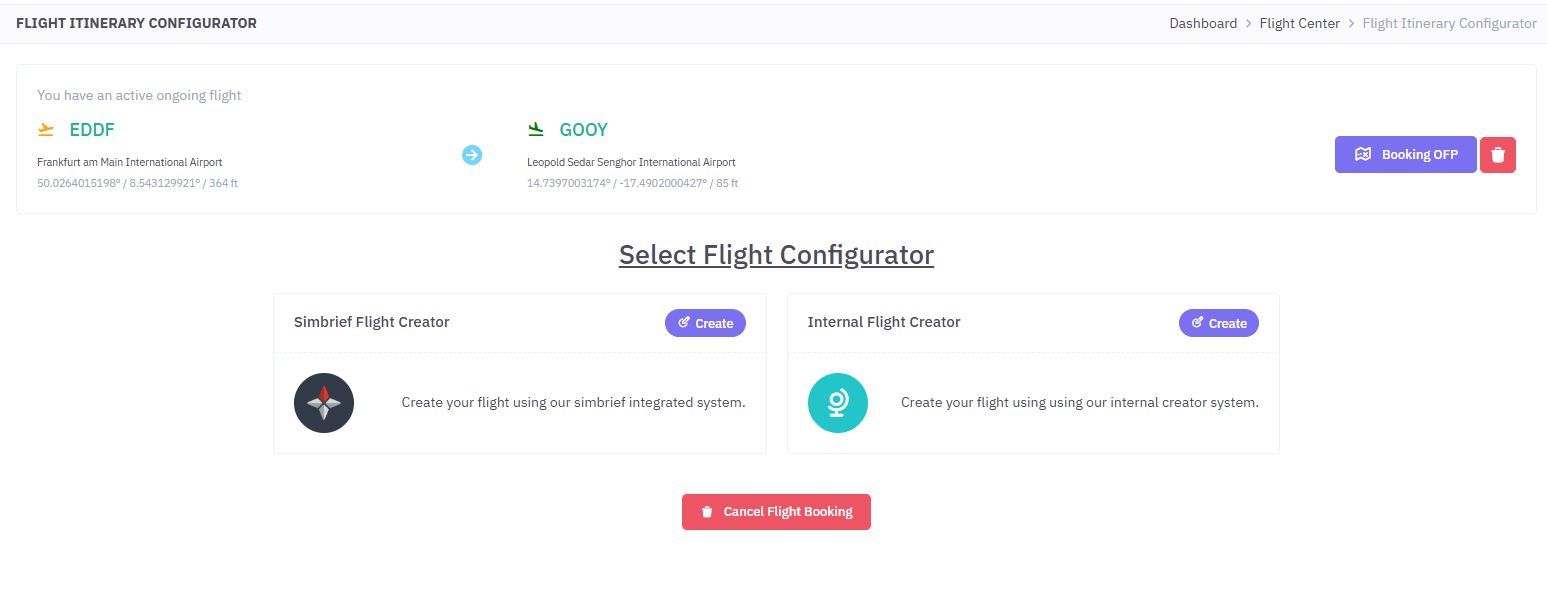
Now you have two options, you can either generate your flight plan using SimBrief or using our Internal Flight Creator tool, the choice is yours.
Open Flights
Please note: pilots must have 300+ flight hours to use this feature.
To create a open flight you first click on Flight Center, you can then click on the Select button next to the Open Flights button.
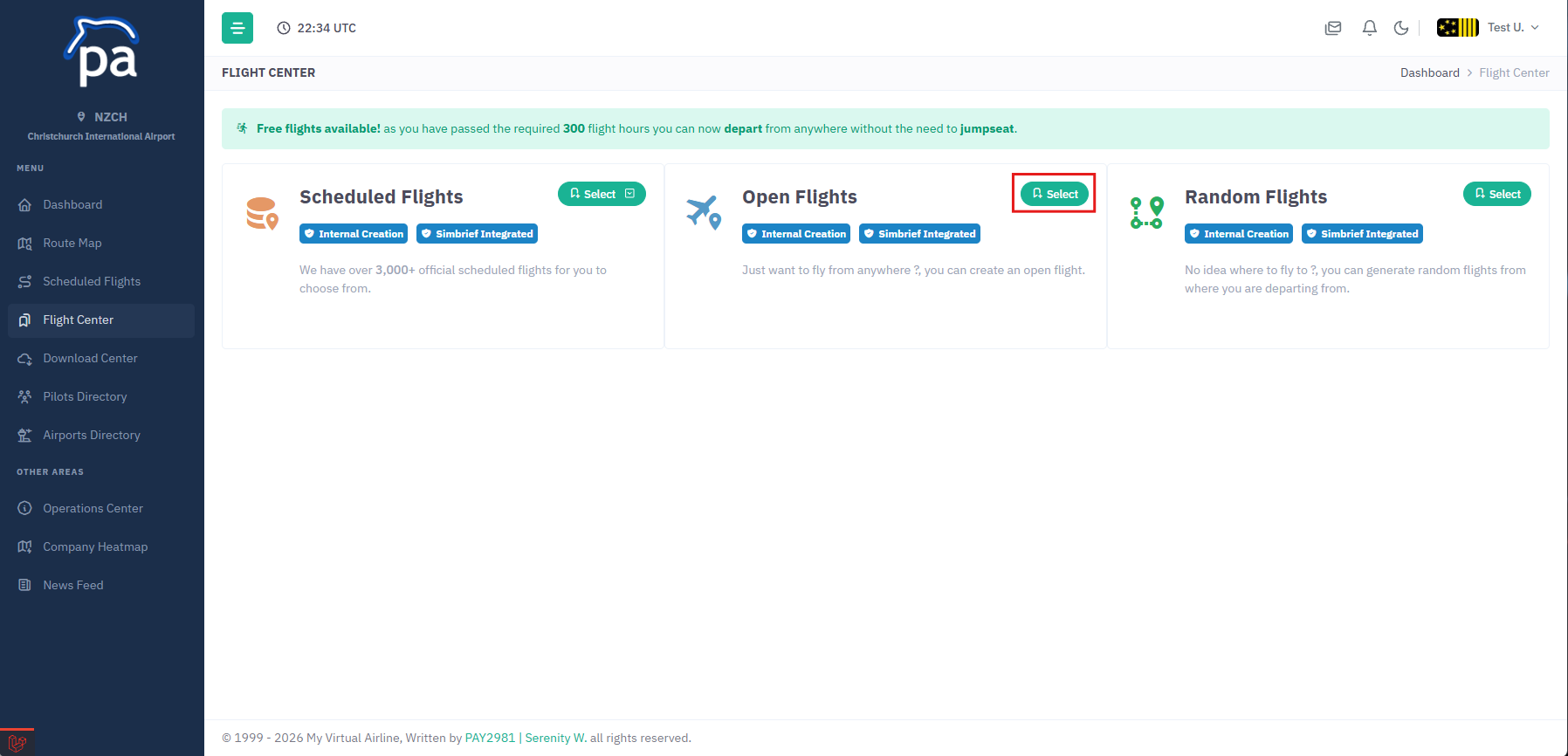
You have 2 different systems to choose from, you can either select Simbrief Flight Creator or Internal Flight Creator.
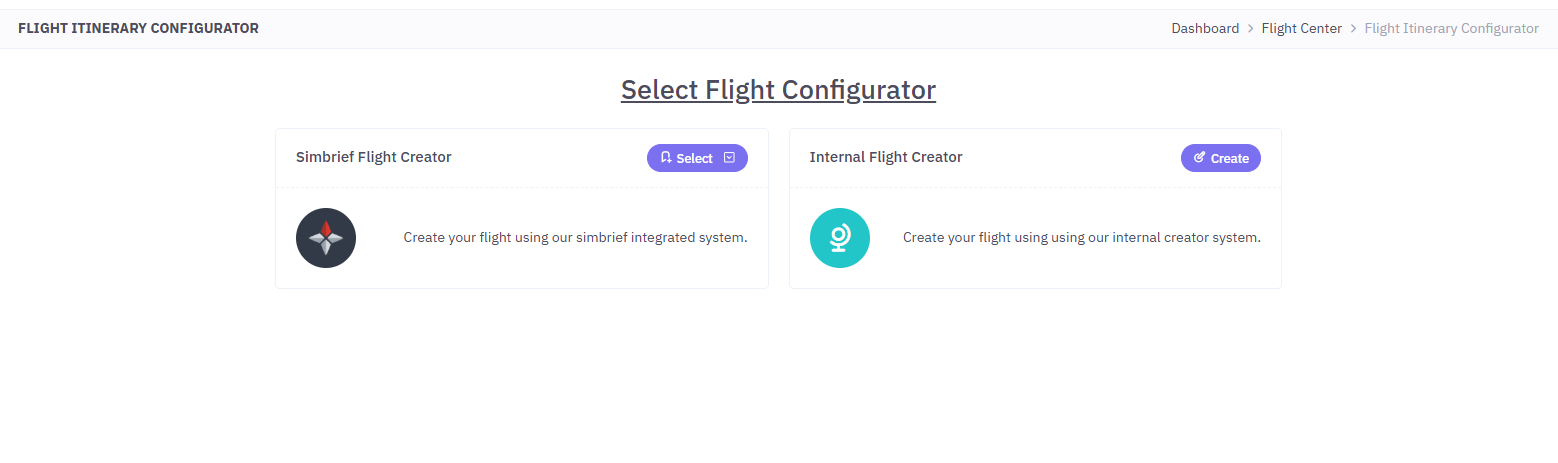
if you select Simbrief Flight Creator you will see the following:
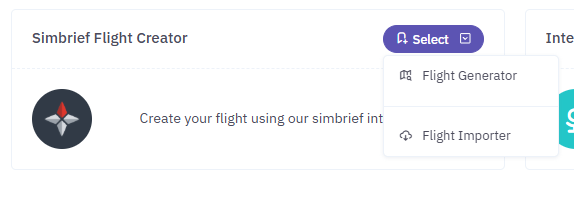
Using Flight Generator will allow you to fill out a form for your flight in which it will then syncronize with your simbrief account and then will proceed to generate your flight.
Alternativly if you select Flight Importer you can generate your flight on simbrief and then it will be imported into your flight.
Using the Internal Flight Creator will utilize our internal flight generator system.
Random Flights
Please note: pilots must have 300+ flight hours to use this feature.
To create a random flight you first click on Flight Center, you can then click on the Select button next to the Random Flights button.
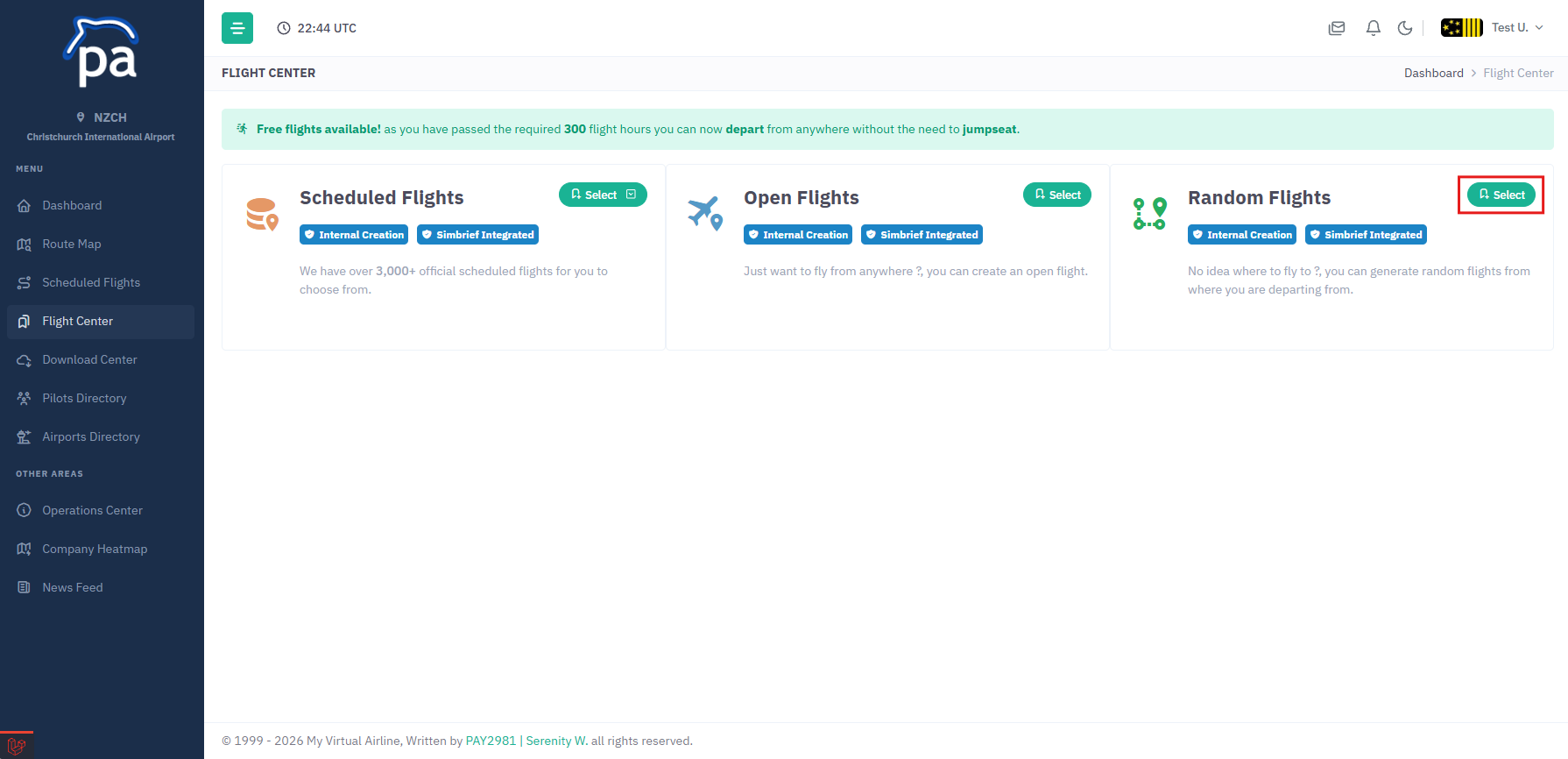
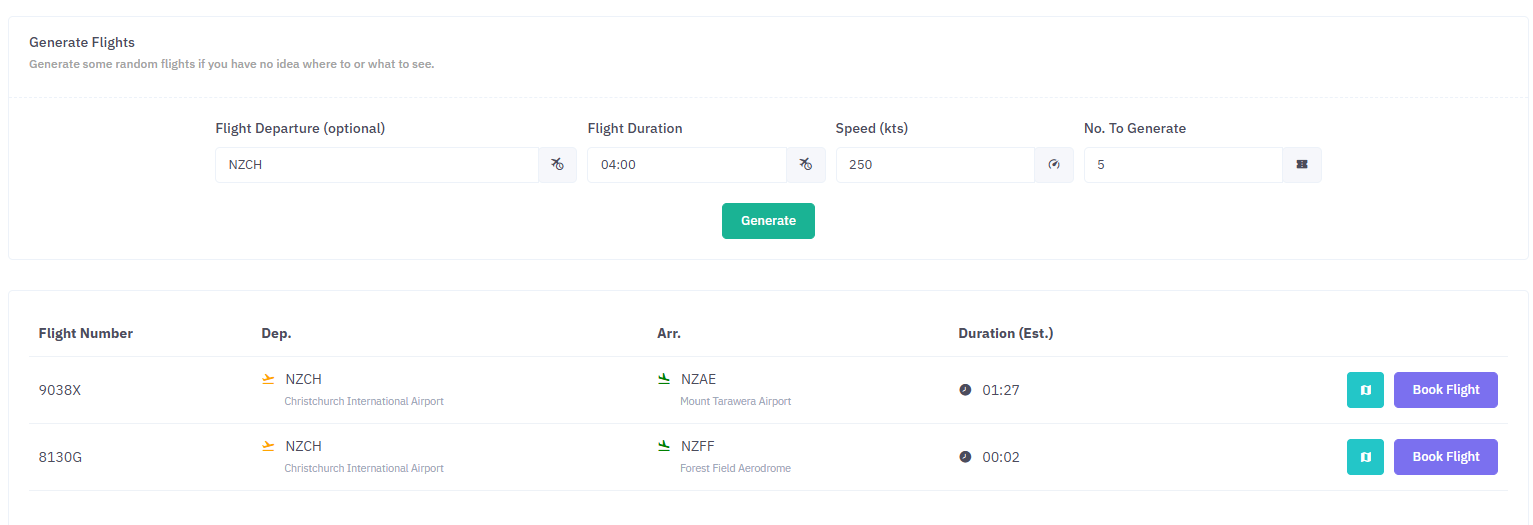
Here you have a few options to help generate random flights, they are:
- Flight Departure
- Flight Duration
- Speed
- Number of flights to generate
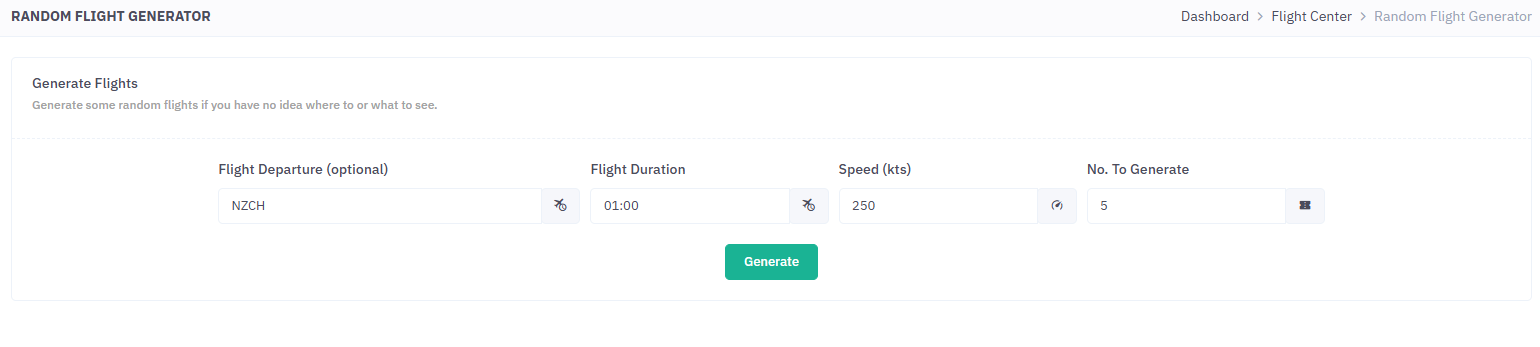
Then click the Generate button, this will then generate some random flights with the data you provided.
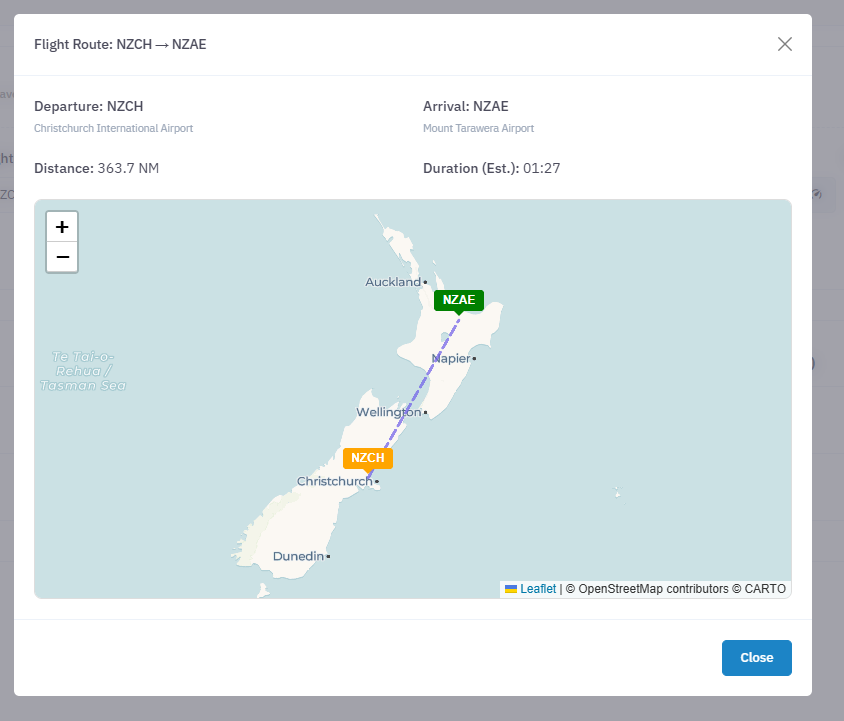
You can click on the Map button to view the flight departure/arrival.
To book the flight click on the Book Flight button this will create the flight in which you can select Simbrief Flight Creator or Internal Flight Creator options.
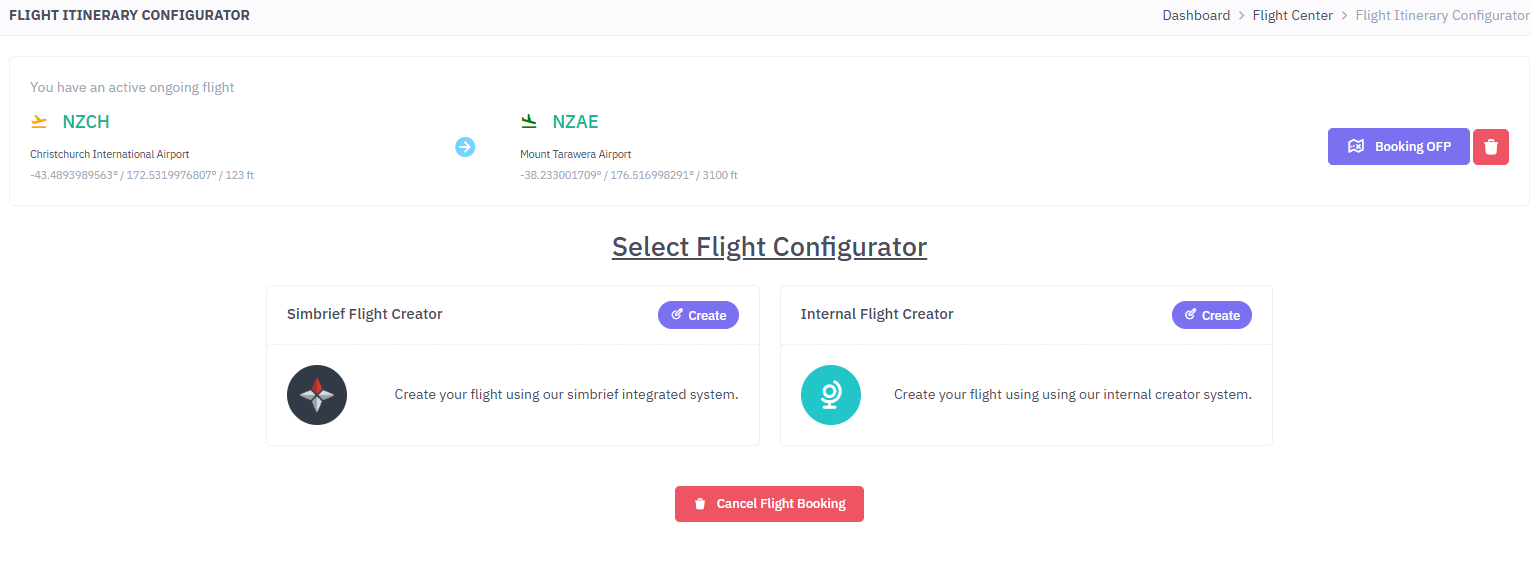
And thats it, you can click on the Cancel Flight Booking or the Trash Icon to delete the booking if you dont want to fly that flight.