**Please note:** pilots must have 300+ flight hours to use this feature.
To create a open flight you first click on **Flight Center,** you can then click on the **Select** button next to the Open Flights button. [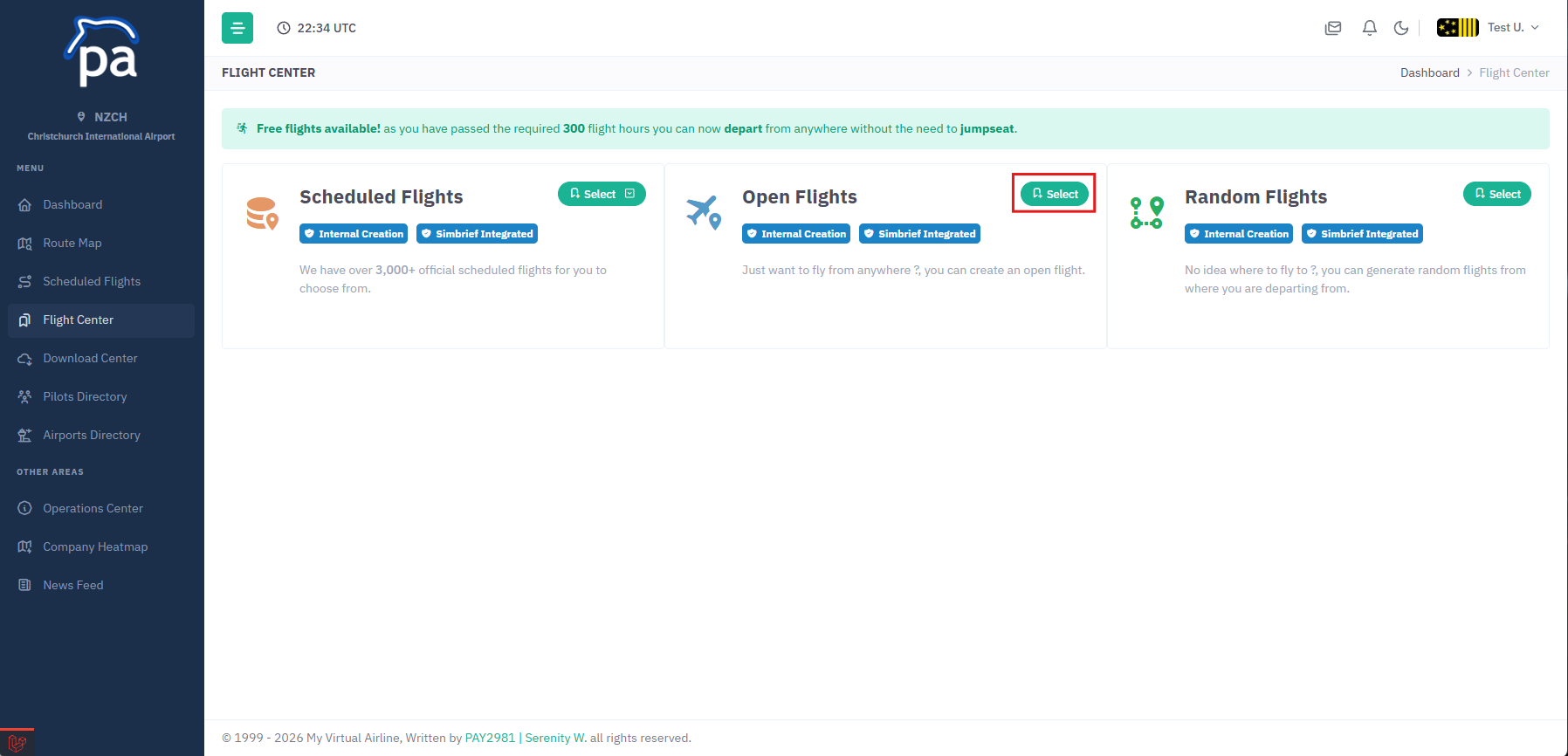](https://ops2.pacificairways.net/uploads/images/gallery/2026-10/open-1.png) You have 2 different systems to choose from, you can either select **Simbrief Flight Creator** or **Internal Flight Creator.** [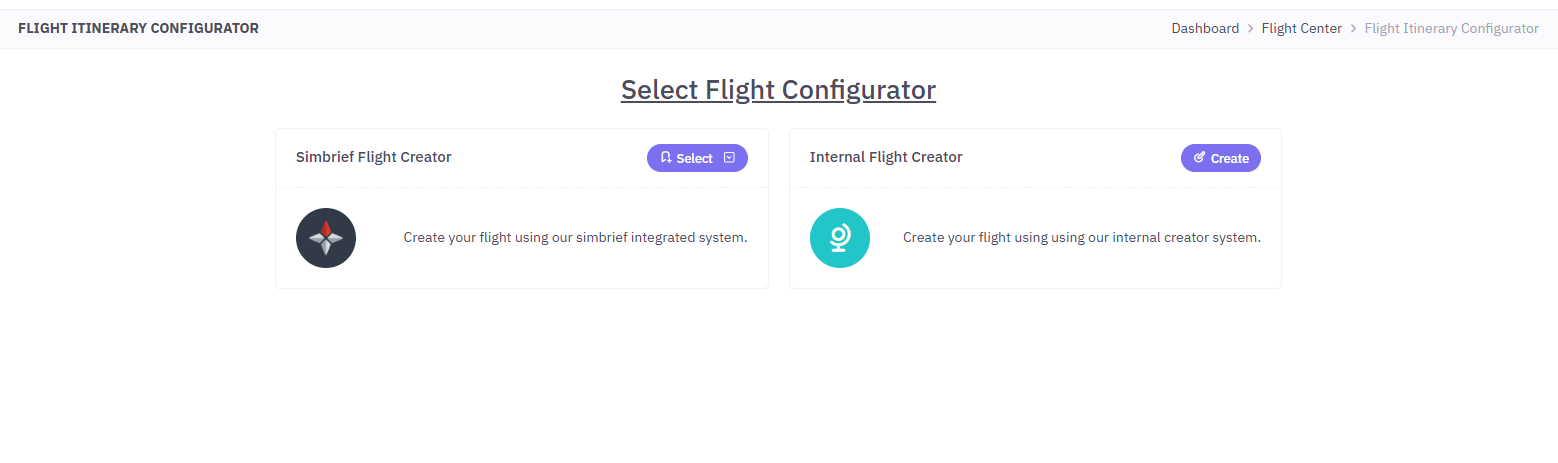](https://ops2.pacificairways.net/uploads/images/gallery/2026-10/open-2.png) if you select *Simbrief Flight Creator* you will see the following: [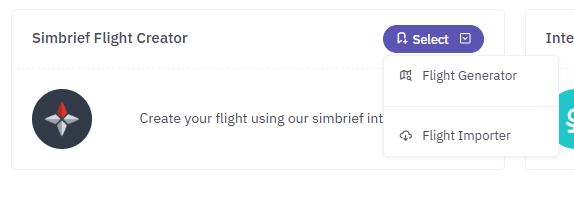](https://ops2.pacificairways.net/uploads/images/gallery/2026-10/open-3.png) Using **Flight Generator** will allow you to fill out a form for your flight in which it will then syncronize with your simbrief account and then will proceed to generate your flight. Alternativly if you select **Flight Importer** you can generate your flight on simbrief and then it will be imported into your flight. Using the **Internal Flight Creator** will utilize our internal flight generator system. # Random Flights**Please note:** pilots must have 300+ flight hours to use this feature.
To create a random flight you first click on **Flight Center,** you can then click on the **Select** button next to the Random Flights button. [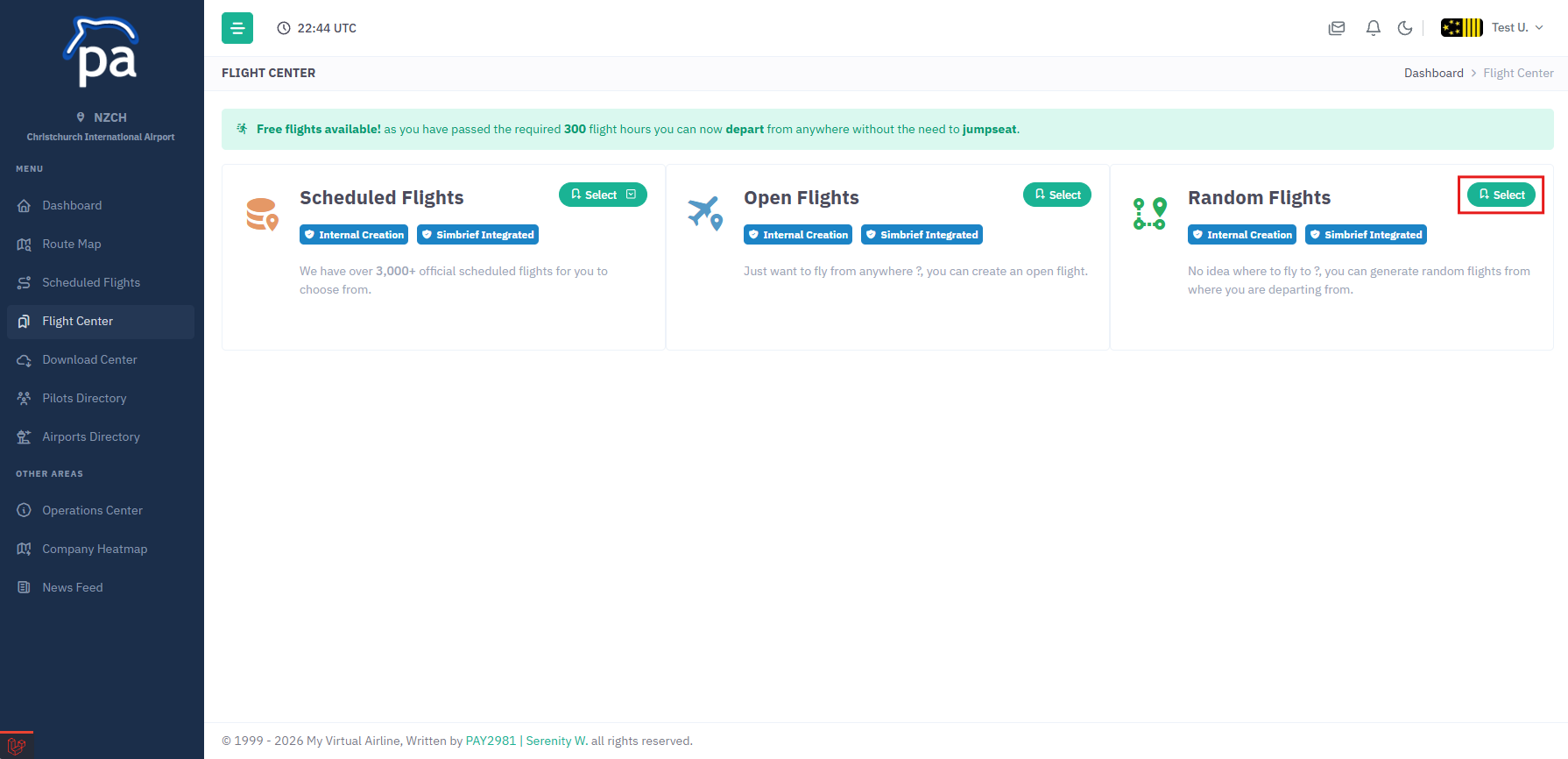](https://ops2.pacificairways.net/uploads/images/gallery/2026-10/random-1.png) Here you have a few options to help generate random flights, they are: - Flight Departure - Flight Duration - Speed - Number of flights to generate [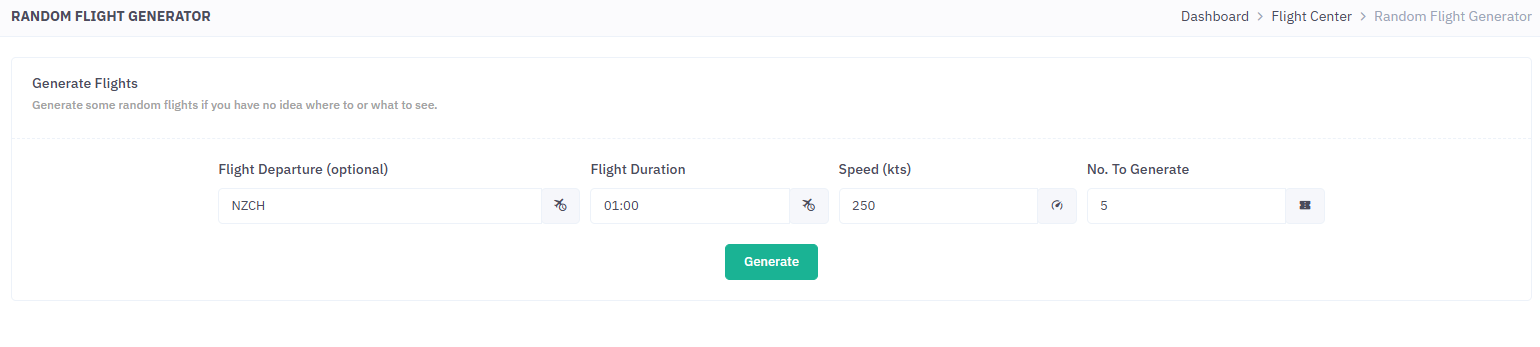](https://ops2.pacificairways.net/uploads/images/gallery/2026-10/random-2.png) Then click the **Generate** button, this will then generate some random flights with the data you provided. [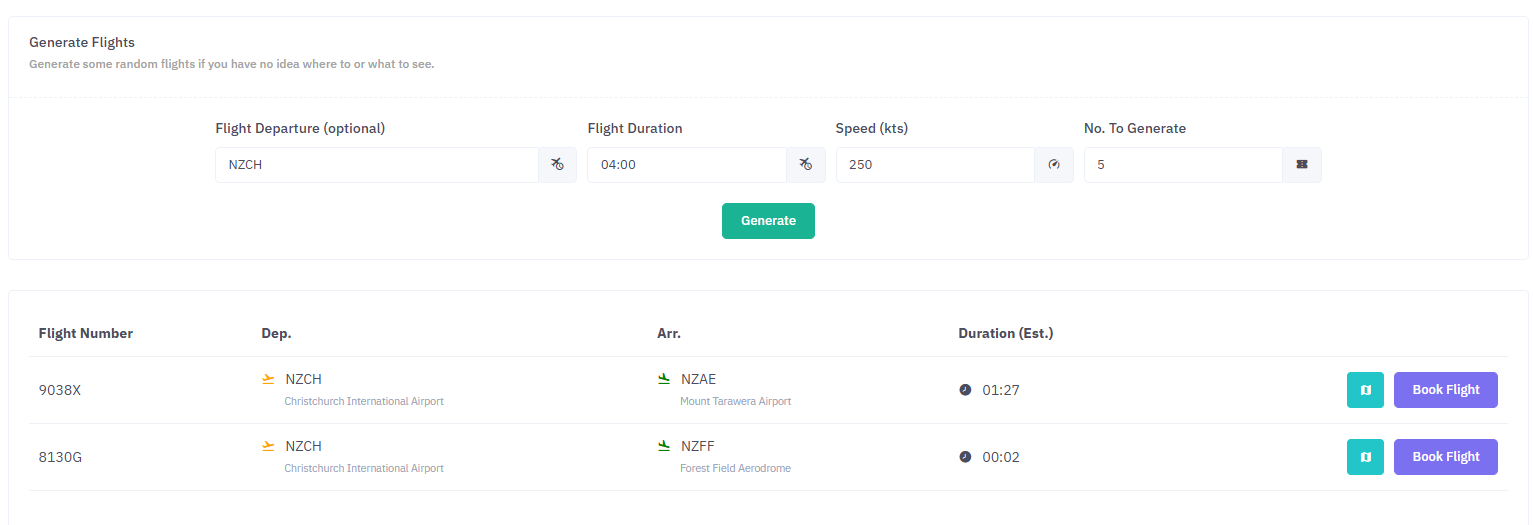](https://ops2.pacificairways.net/uploads/images/gallery/2026-10/random-3.png) You can click on the **Map** button to view the flight departure/arrival. [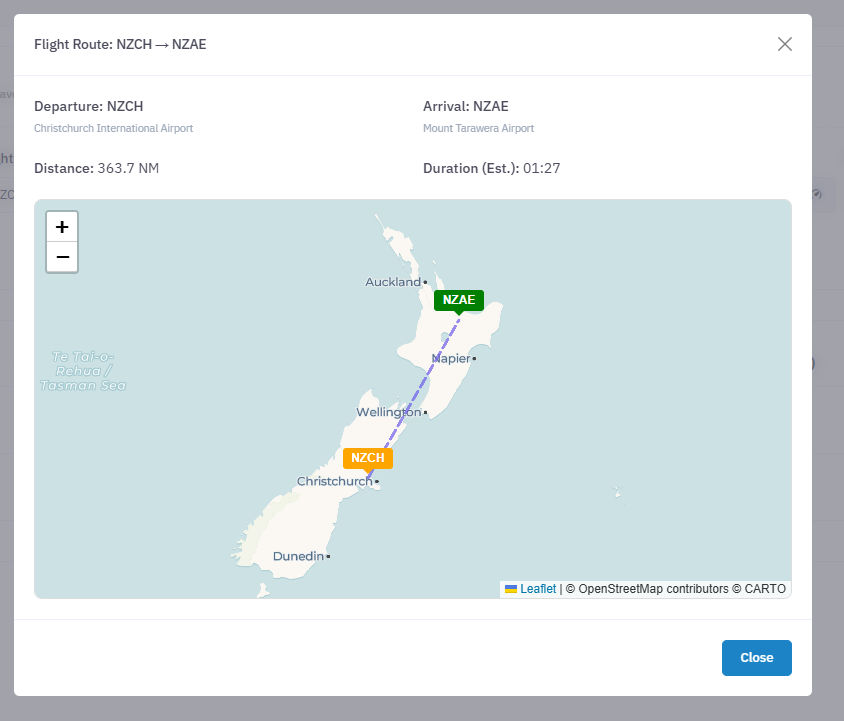](https://ops2.pacificairways.net/uploads/images/gallery/2026-10/random-4.png) To book the flight click on the **Book Flight** button this will create the flight in which you can select **Simbrief Flight Creator** or **Internal Flight Creator** options. [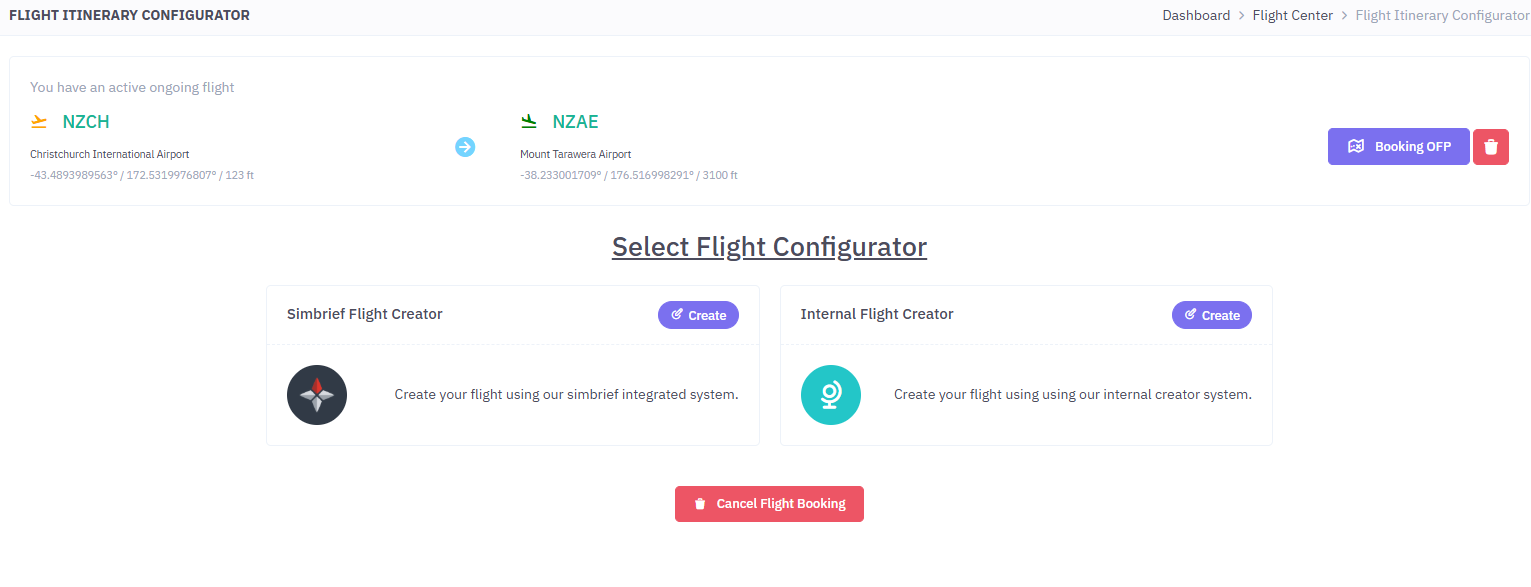](https://ops2.pacificairways.net/uploads/images/gallery/2026-10/random-5.png) And thats it, you can click on the **Cancel Flight Booking** or the **Trash Icon** to delete the booking if you dont want to fly that flight.