Fill in as much information as you can, this will improve the chances of your flight being **accepted** by our team.
# Jumpseating As a pilot within **Pacific Airways** you have the ability to change location by using our **Jump Seat** system. To access the Jump Seat area you click on the avatar on the *top right* of the website and select **Jumpseat**. [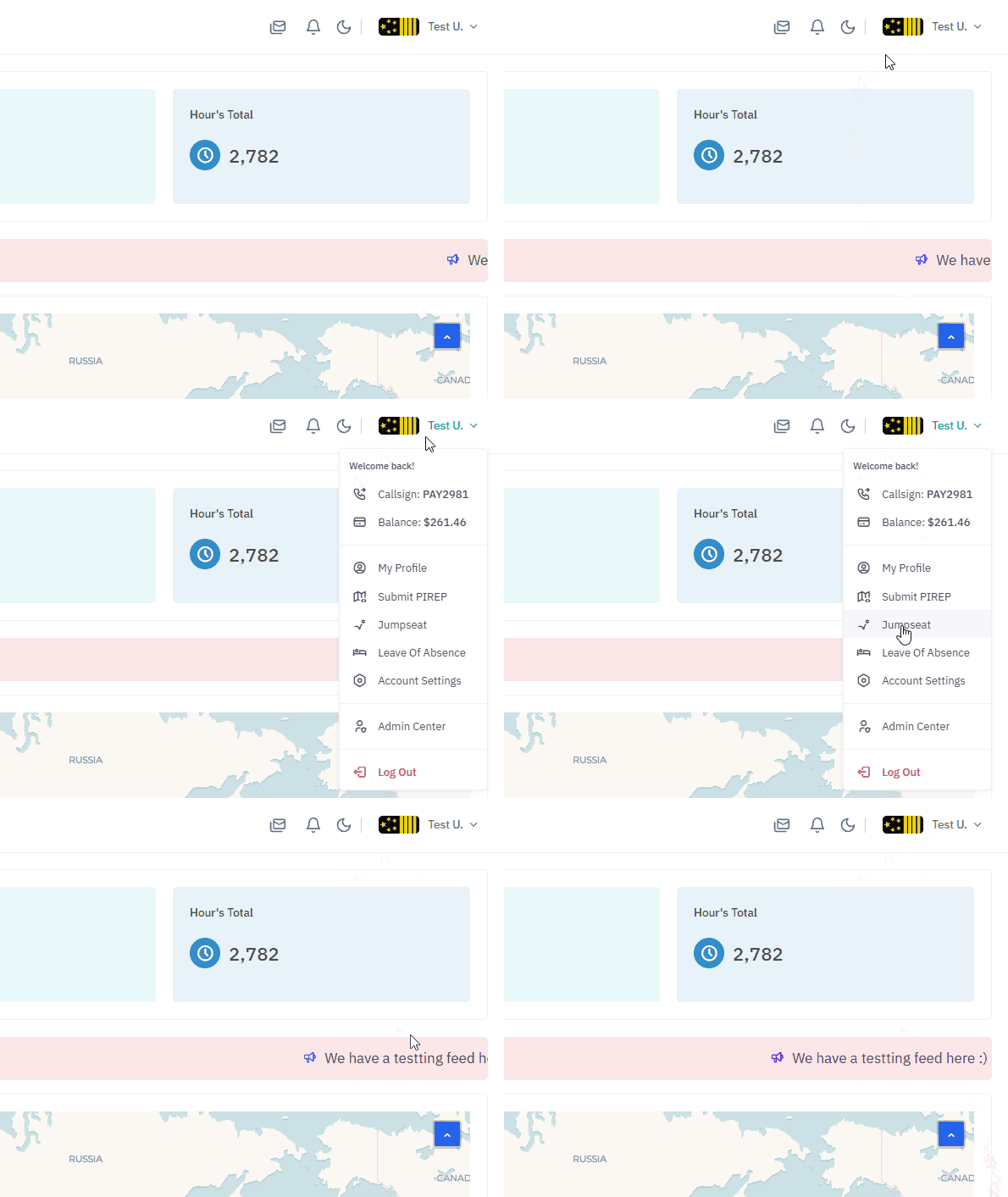](https://ops2.pacificairways.net/uploads/images/gallery/2026-10/jumpseat-1.gif) You select the airport ICAO that you wish to jumpseat to and if you have the funds available you can then click on **Confirm Jumpseat** button. [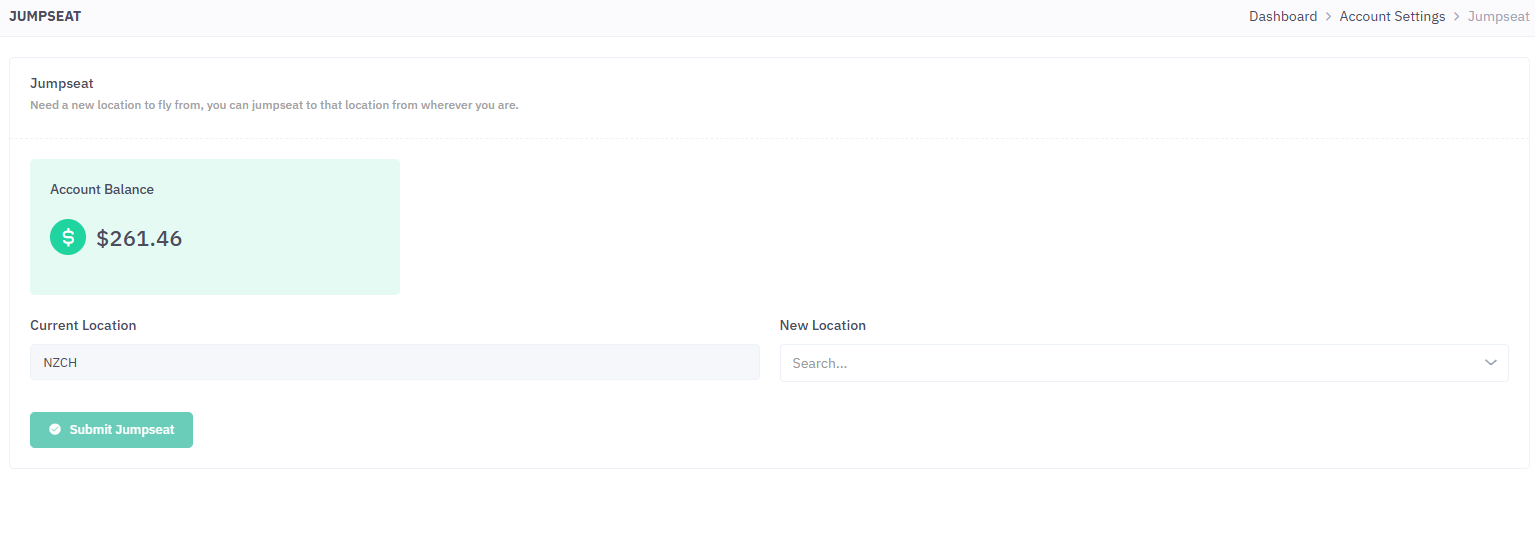](https://ops2.pacificairways.net/uploads/images/gallery/2026-10/jumpseat-2.png)Jumpseat is a set rate per nautical mile (nm) that can be changed at any time by our staff without warning. Ensure you select the correct location before submitting as this is non-refundable.
# Account Settings You are able to modify anything to do with your account within **Pacific Airways** To access your *Account Settings* you click on the avatar on the *top right* of the website and select **Account Settings**. [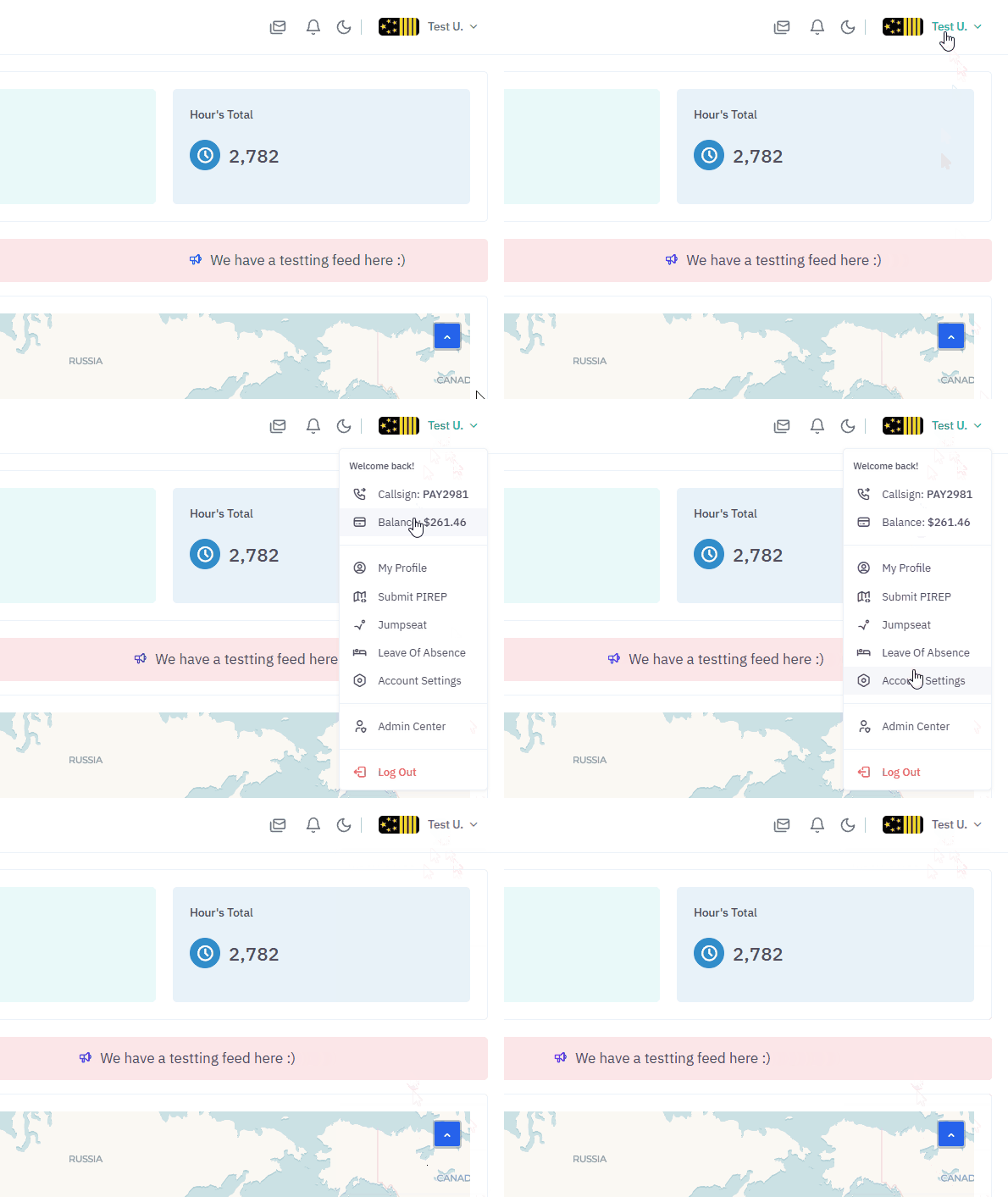](https://ops2.pacificairways.net/uploads/images/gallery/2026-10/account-1.gif) In this area you can modify many things to do with your account and the way you see things within the website. # Leave Of Absence When one of our pilots require some time off, we have a system in place that allows our pilots to go on leave. To submit a manual PIREP you click on the **avatar** on the top right of the website & then you click on **Leave Of Absence.** **[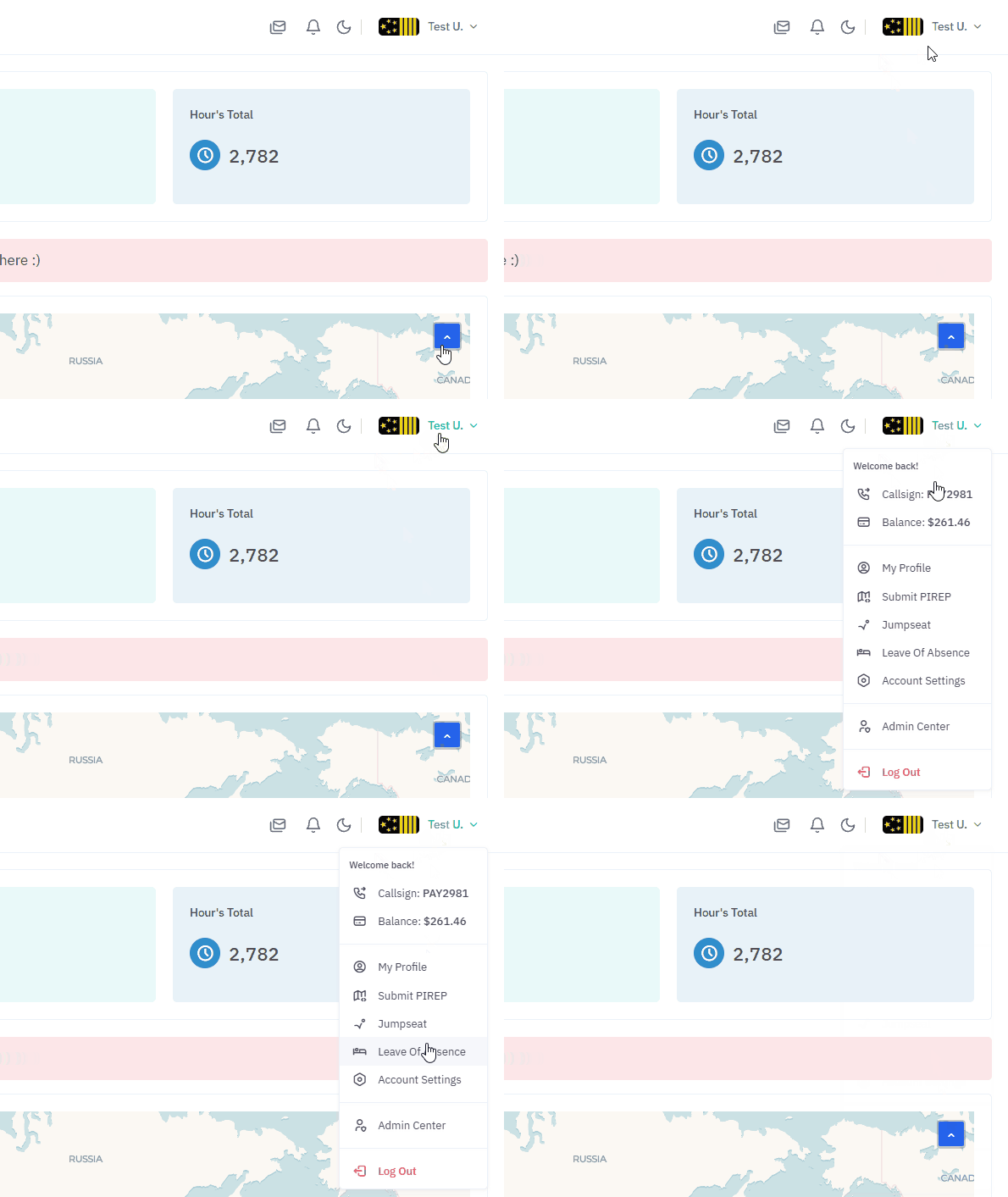](https://ops2.pacificairways.net/uploads/images/gallery/2026-10/loa-1.gif)** From there you need to provide the following information: - Start Date - End Date - Reason Once you have **submitted** the form, one of our team members will review it and if it is accepted then your all set to go. [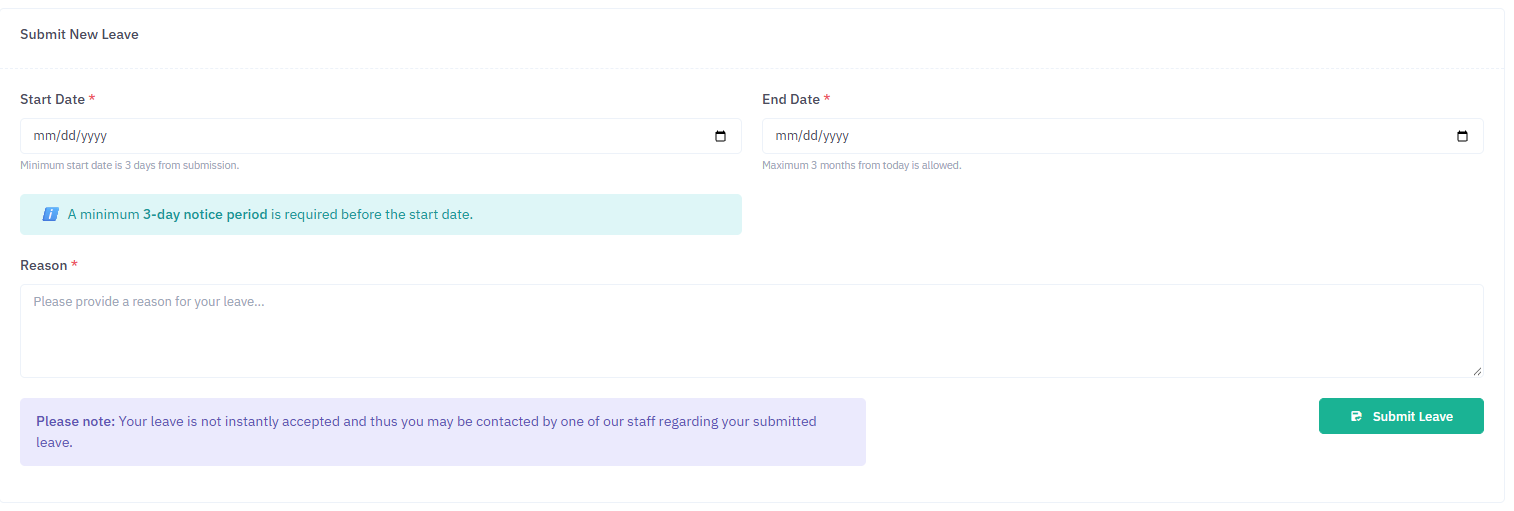](https://ops2.pacificairways.net/uploads/images/gallery/2026-10/loa-2.png) ##### What if i need an extension? You can extend it by contacting one of our **Executive Team** members on our offical **discord** server and they can update it if required. # Fleet We fly many planes and create official Pacific Airways liveries for them. To visit our fleet section you click on **Download Center** then click on the **Goto Liveries Center** button, there you will find liveries for many aircraft. [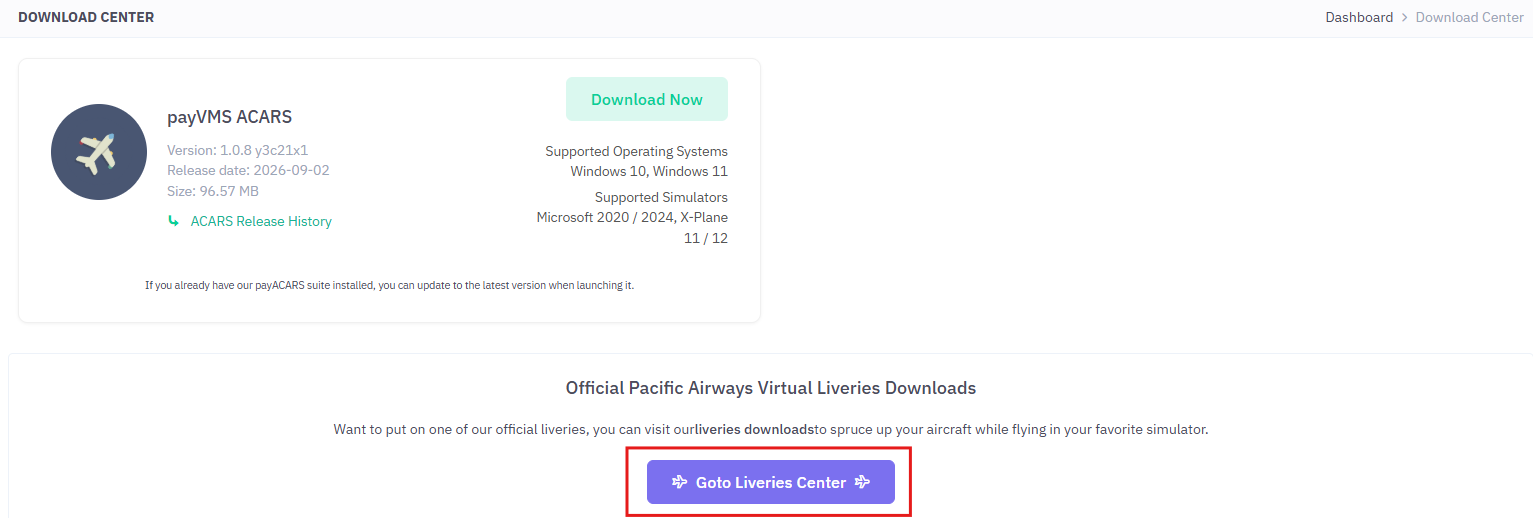](https://ops2.pacificairways.net/uploads/images/gallery/2026-10/liveries-1.png) If we do not have a livery for an aircraft you can join our [**Discord** ](https://discord.gg/PjmmUWqe)server and request one. # Flight Center # Scheduled Flights To create a scheduled flight you first click on **Flight Center,** you can then click on the **Select** button next to the Scheduled Flights button. [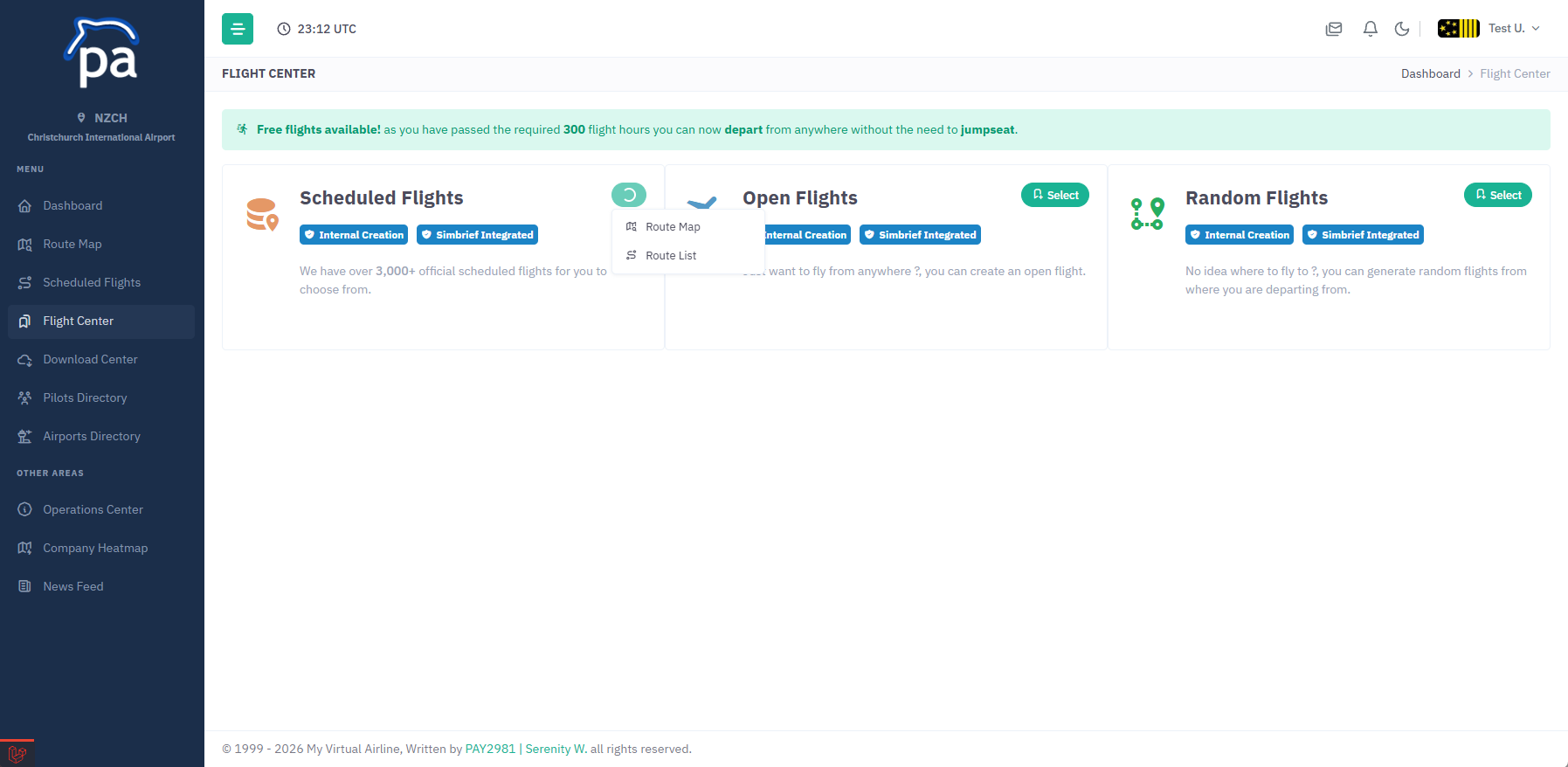](https://ops2.pacificairways.net/uploads/images/gallery/2026-10/sched-01.png) You have two options, *Route Map* or *Route List* these will allow you to either see our map locations or a list of available flights. Once you have chosen a location click on the **View Details** button to load the flight information. [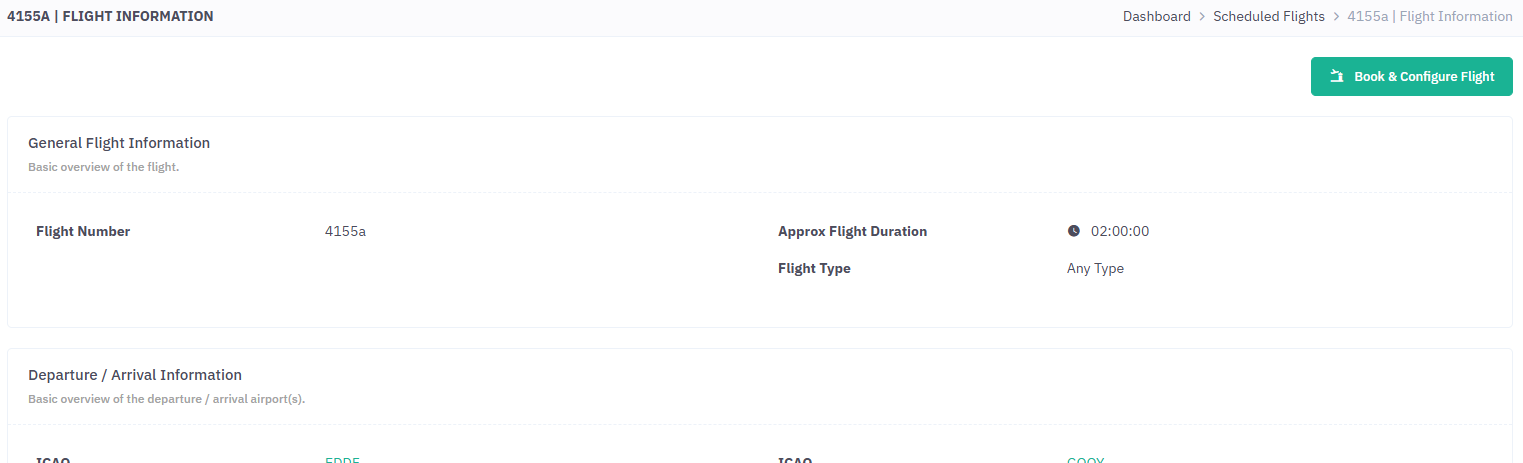](https://ops2.pacificairways.net/uploads/images/gallery/2026-10/sched-02.png) When your ready to book the flight click on the **Book & Configure Flight** button. Now you have two options, you can either generate your flight plan using SimBrief or using our Internal Flight Creator tool, the choice is yours. [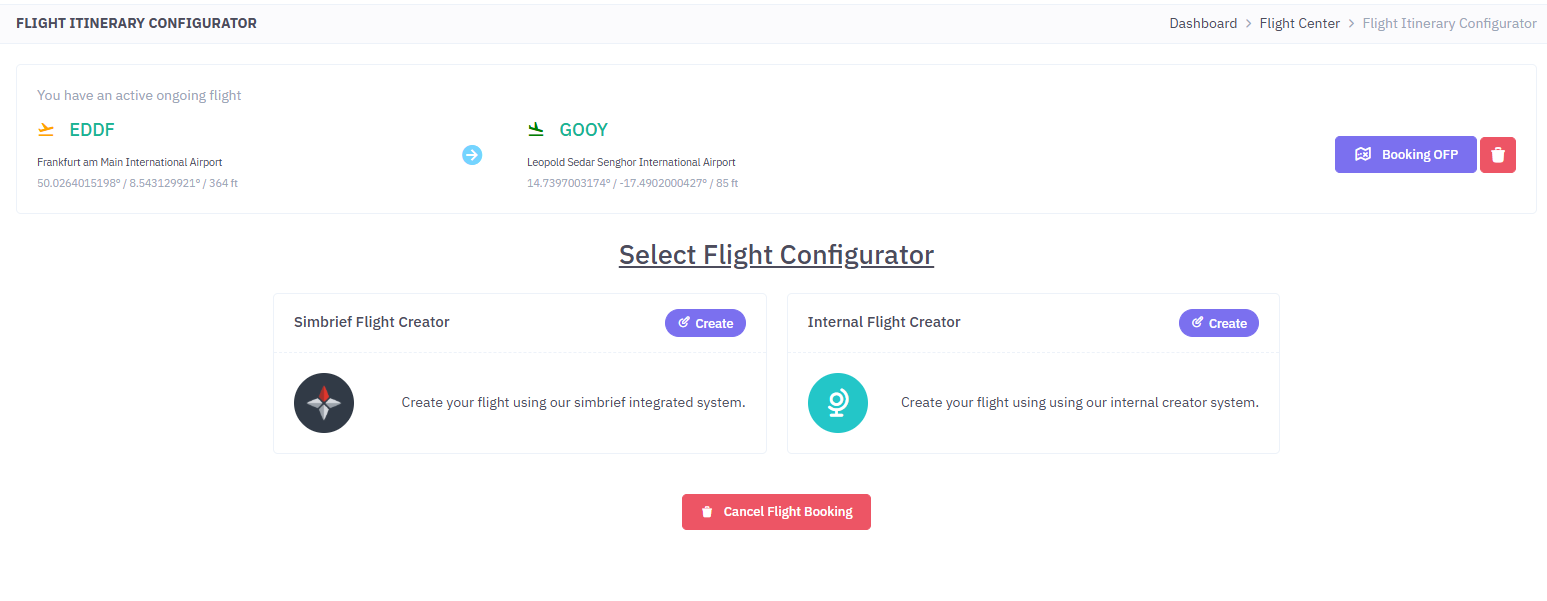](https://ops2.pacificairways.net/uploads/images/gallery/2026-10/sched-03.png) # Open Flights**Please note:** pilots must have 300+ flight hours to use this feature.
To create a open flight you first click on **Flight Center,** you can then click on the **Select** button next to the Open Flights button. [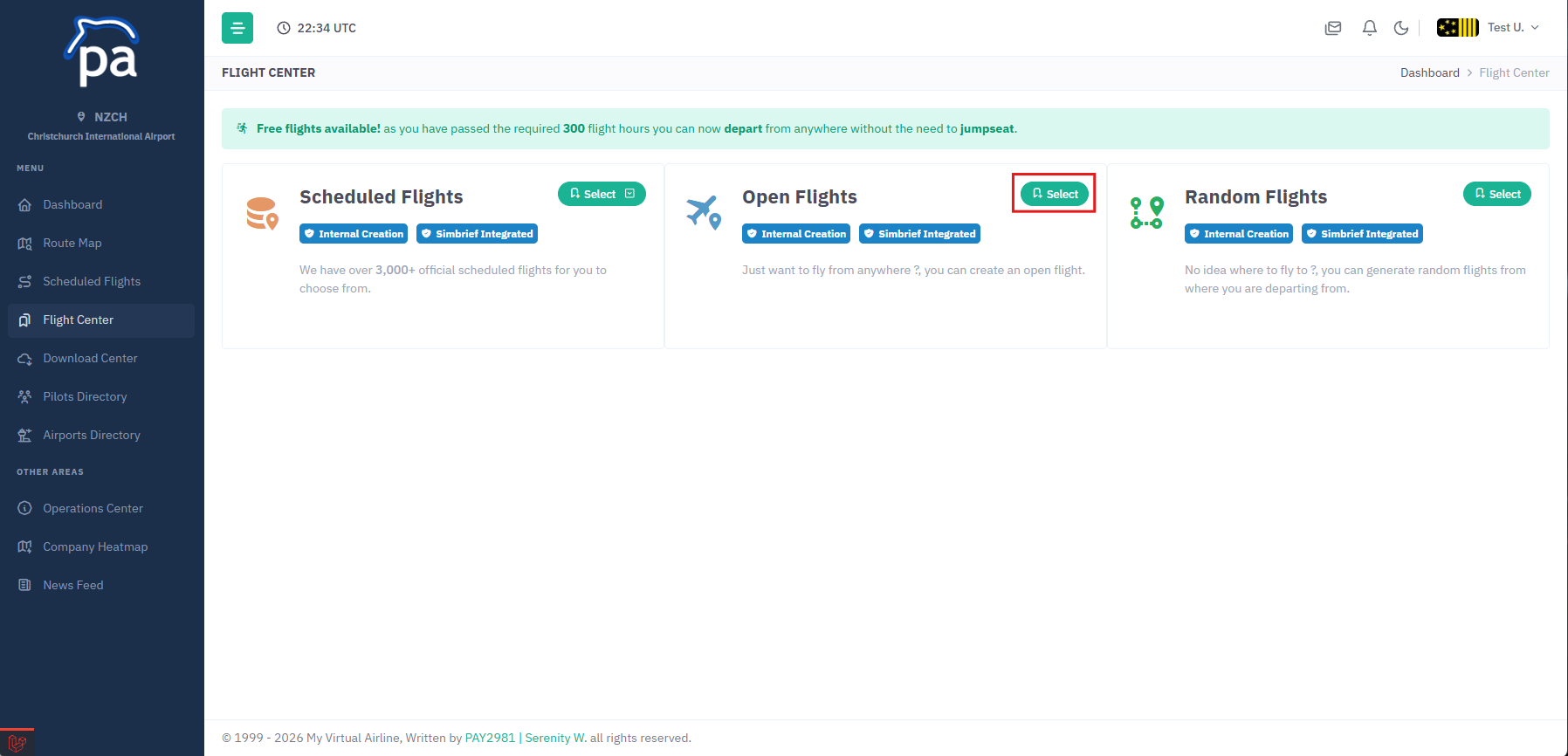](https://ops2.pacificairways.net/uploads/images/gallery/2026-10/open-1.png) You have 2 different systems to choose from, you can either select **Simbrief Flight Creator** or **Internal Flight Creator.** [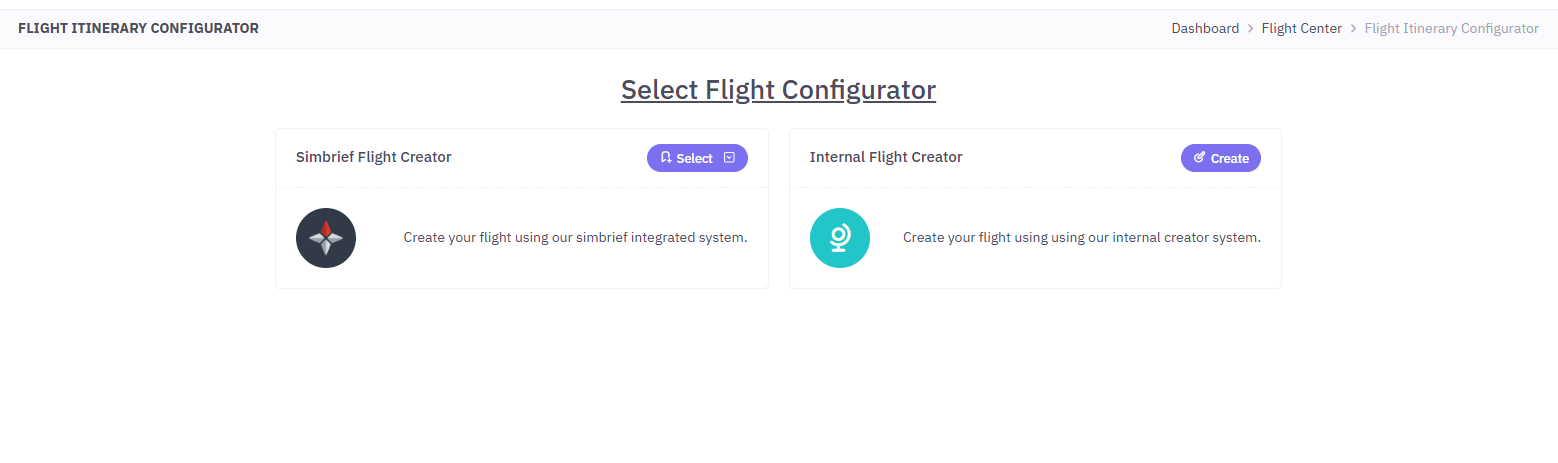](https://ops2.pacificairways.net/uploads/images/gallery/2026-10/open-2.png) if you select *Simbrief Flight Creator* you will see the following: [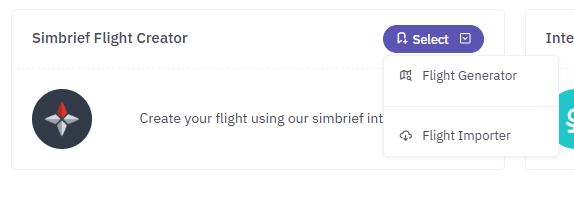](https://ops2.pacificairways.net/uploads/images/gallery/2026-10/open-3.png) Using **Flight Generator** will allow you to fill out a form for your flight in which it will then syncronize with your simbrief account and then will proceed to generate your flight. Alternativly if you select **Flight Importer** you can generate your flight on simbrief and then it will be imported into your flight. Using the **Internal Flight Creator** will utilize our internal flight generator system. # Random Flights**Please note:** pilots must have 300+ flight hours to use this feature.
To create a random flight you first click on **Flight Center,** you can then click on the **Select** button next to the Random Flights button. [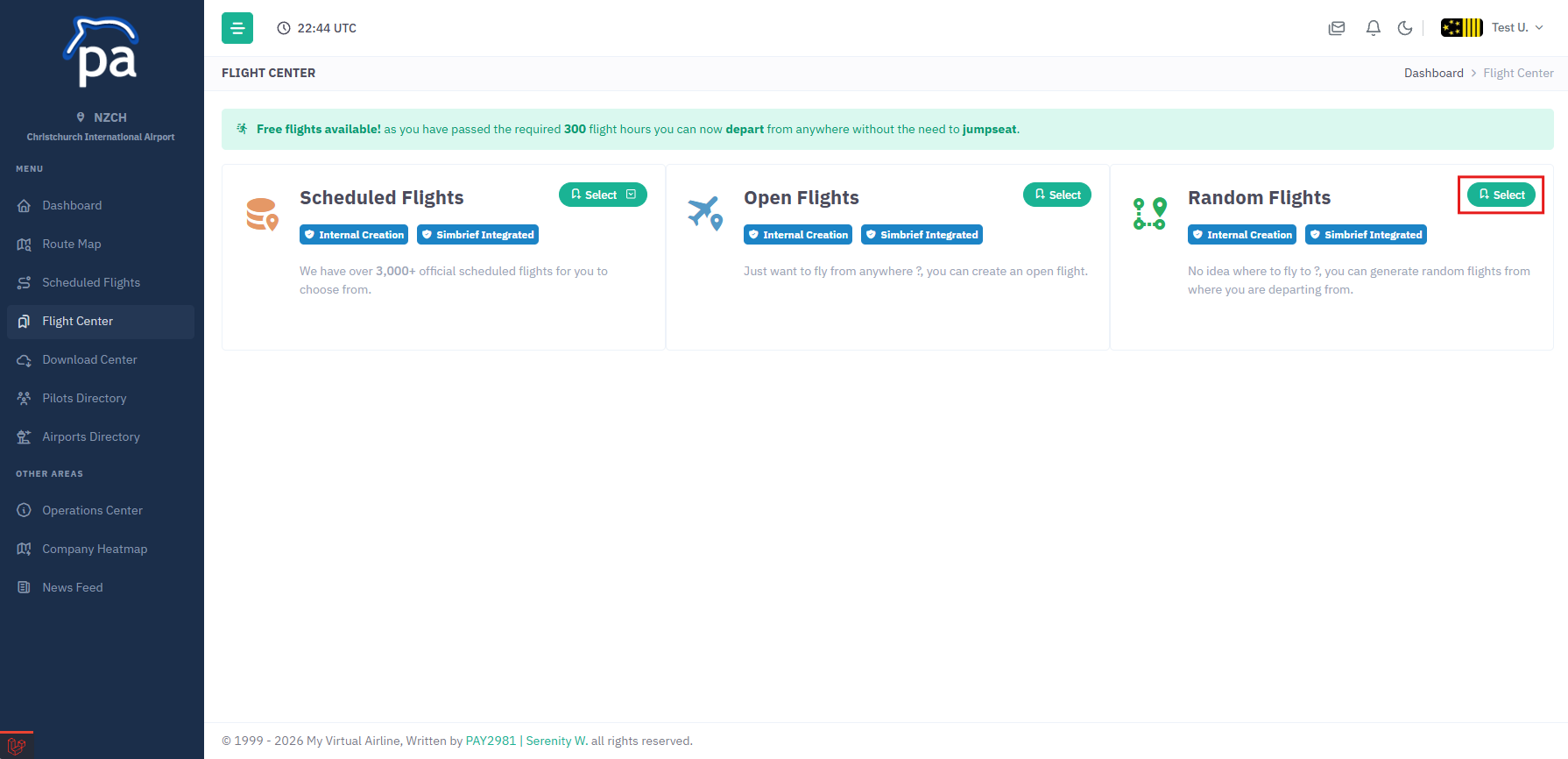](https://ops2.pacificairways.net/uploads/images/gallery/2026-10/random-1.png) Here you have a few options to help generate random flights, they are: - Flight Departure - Flight Duration - Speed - Number of flights to generate [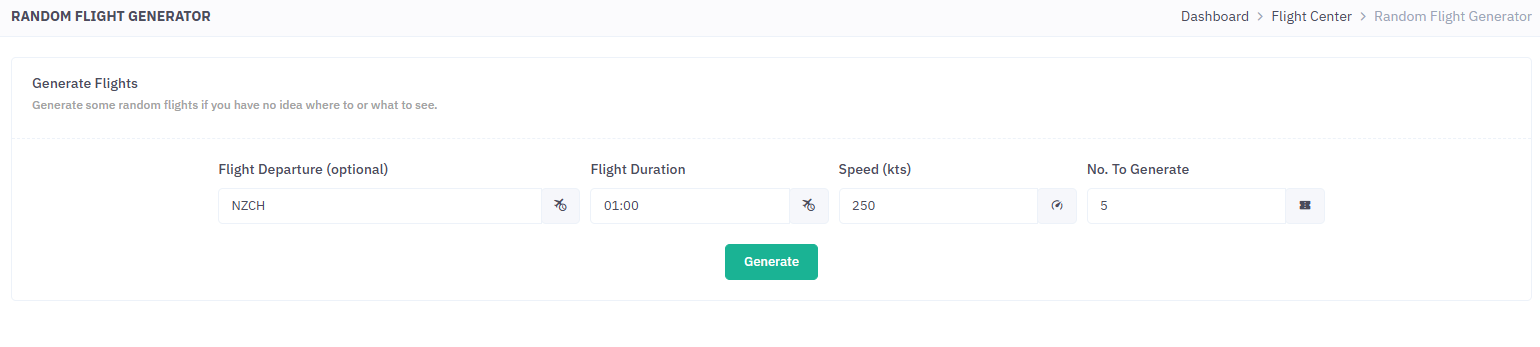](https://ops2.pacificairways.net/uploads/images/gallery/2026-10/random-2.png) Then click the **Generate** button, this will then generate some random flights with the data you provided. [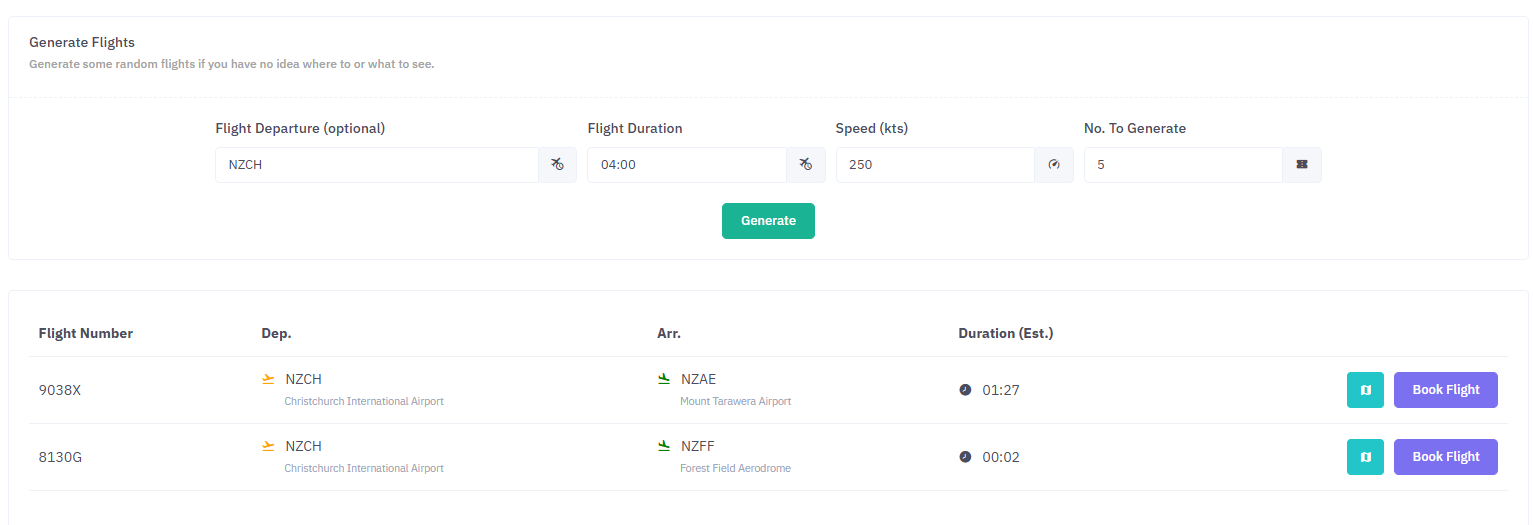](https://ops2.pacificairways.net/uploads/images/gallery/2026-10/random-3.png) You can click on the **Map** button to view the flight departure/arrival. [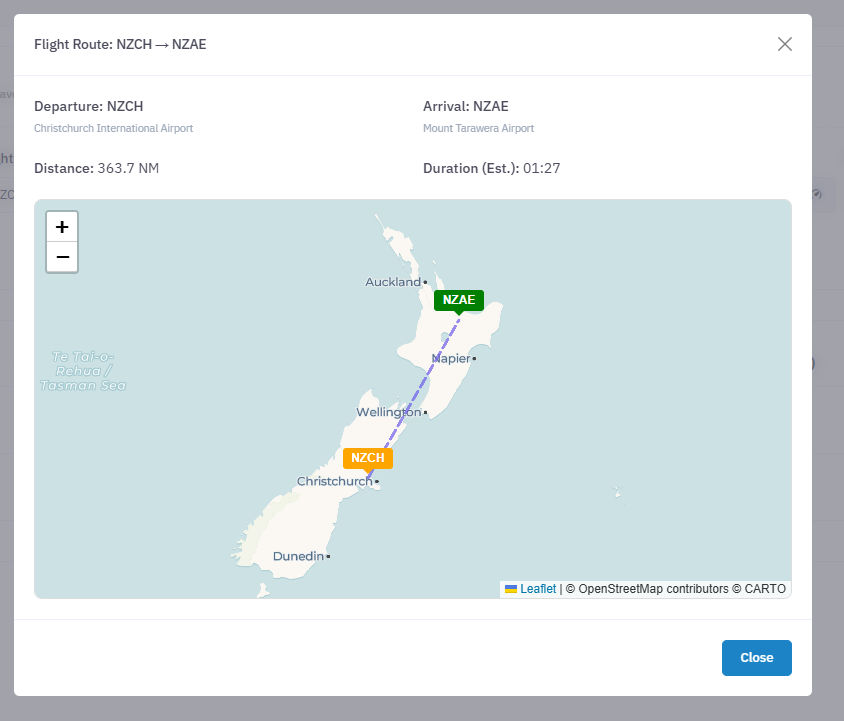](https://ops2.pacificairways.net/uploads/images/gallery/2026-10/random-4.png) To book the flight click on the **Book Flight** button this will create the flight in which you can select **Simbrief Flight Creator** or **Internal Flight Creator** options. [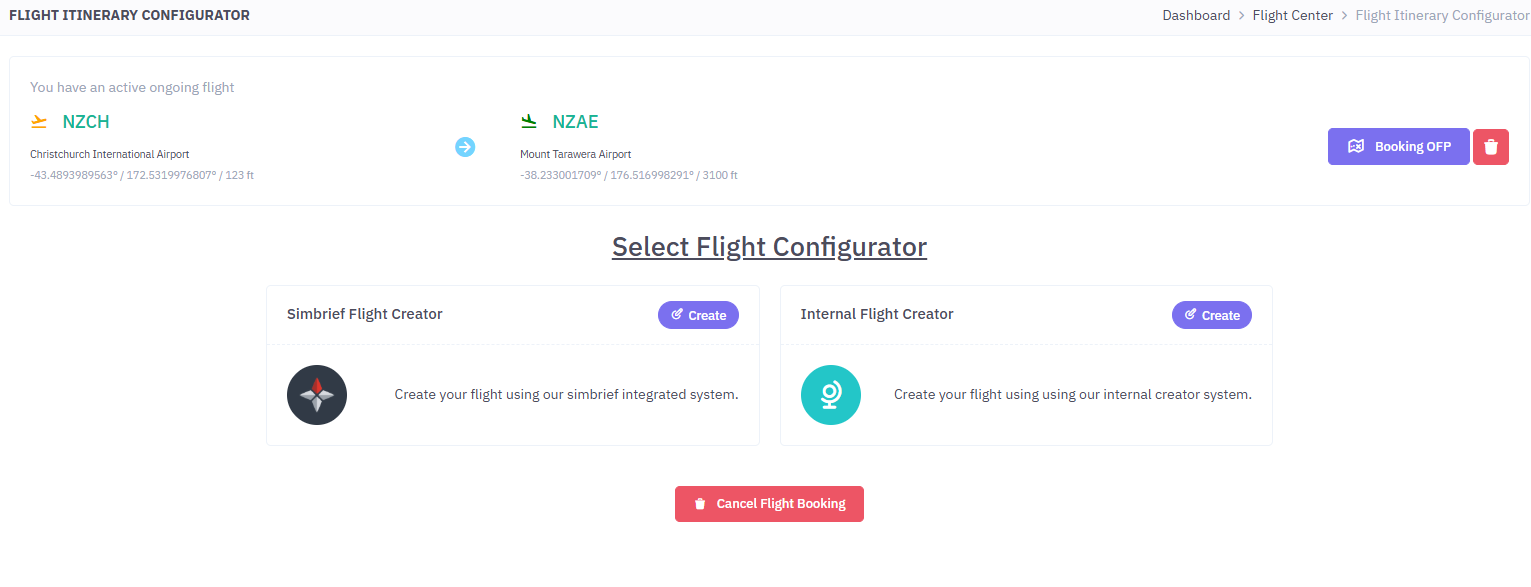](https://ops2.pacificairways.net/uploads/images/gallery/2026-10/random-5.png) And thats it, you can click on the **Cancel Flight Booking** or the **Trash Icon** to delete the booking if you dont want to fly that flight. # payVMS ACARS # Downloading ACARS & Required Software To download **payVMS ACARS** software, you click on **Download Center** in our crew center. [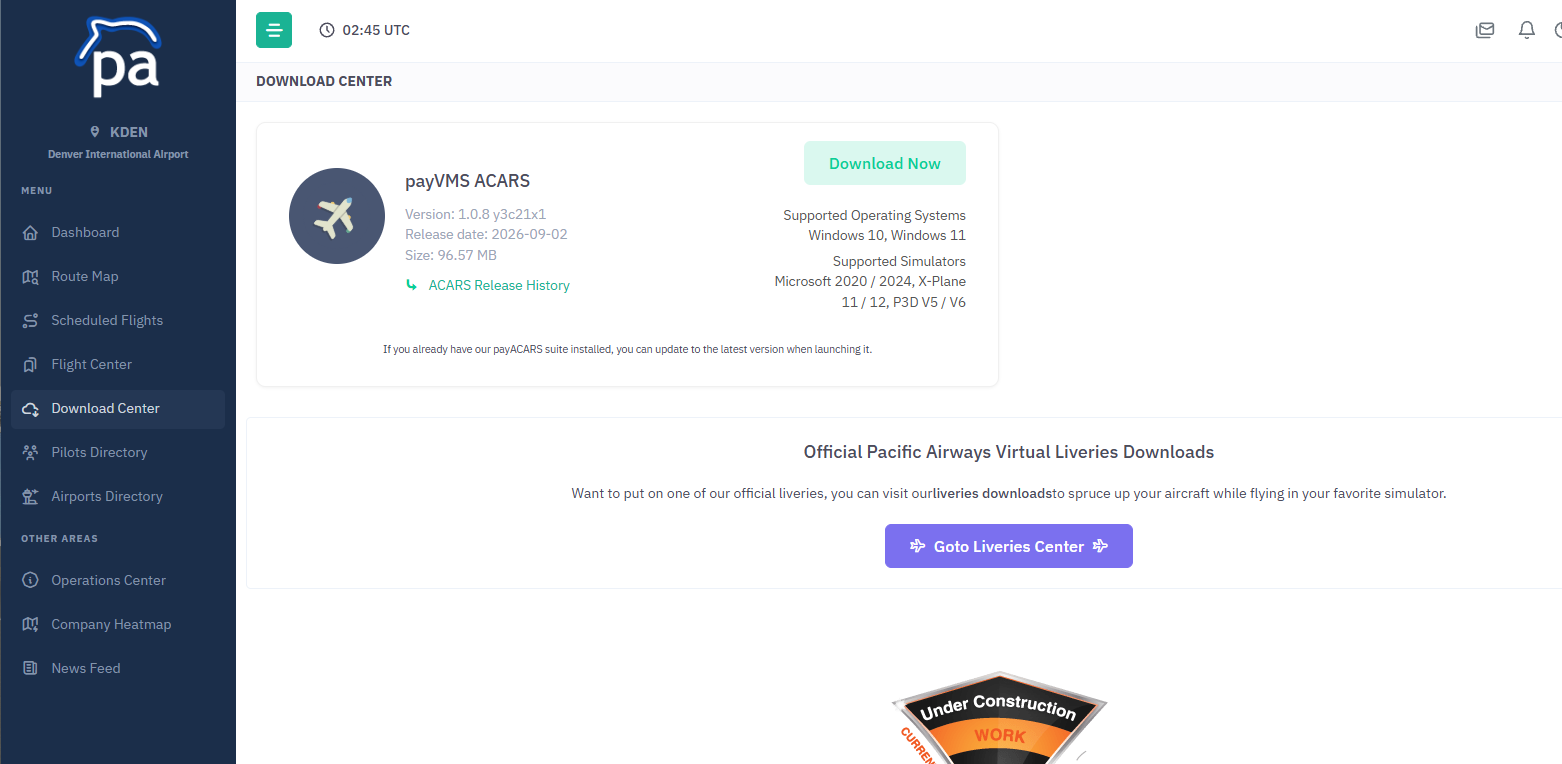](https://ops2.pacificairways.net/uploads/images/gallery/2026-10/acars-1.png) Then click on the **Download Now** button next to *payVMS ACARS* as shown above. In order for our ACARS to communicate with your simulator, you will need either of the following: - FSUIPC (MSFS 2020/24) - [https://fsuipc.com/fsuipc7/](https://fsuipc.com/fsuipc7/) - XPUIPC (X-Plane 11/12) - [https://fsacars.com/downloads/xpuipc/](https://fsacars.com/downloads/xpuipc/) Operating Systems supported by our ACARS suite: **Windows 10/11** # Starting / Ending Flights Once you have loaded the ACARS application, you will be greeted with the booking view. [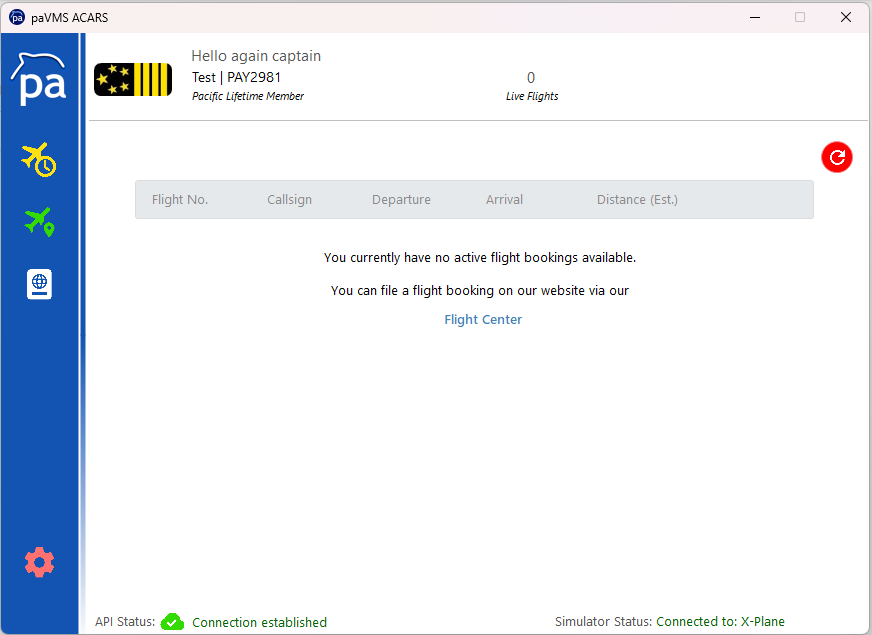](https://ops2.pacificairways.net/uploads/images/gallery/2026-10/acars-2.png) This is where your flight bookings will show, in order to have your booking show in the ACARS you need to create your flight on our website. Once you have created your flight it will show in the bookings tab, to refresh your booking list, you can click on the [](https://ops2.pacificairways.net/uploads/images/gallery/2026-10/acars-3.png)icon on the **top right** of the application. --- ##### Activating Flight Booking & Starting Flight To activate a flight booking, in your **bookings** tab your flight will show like the following. [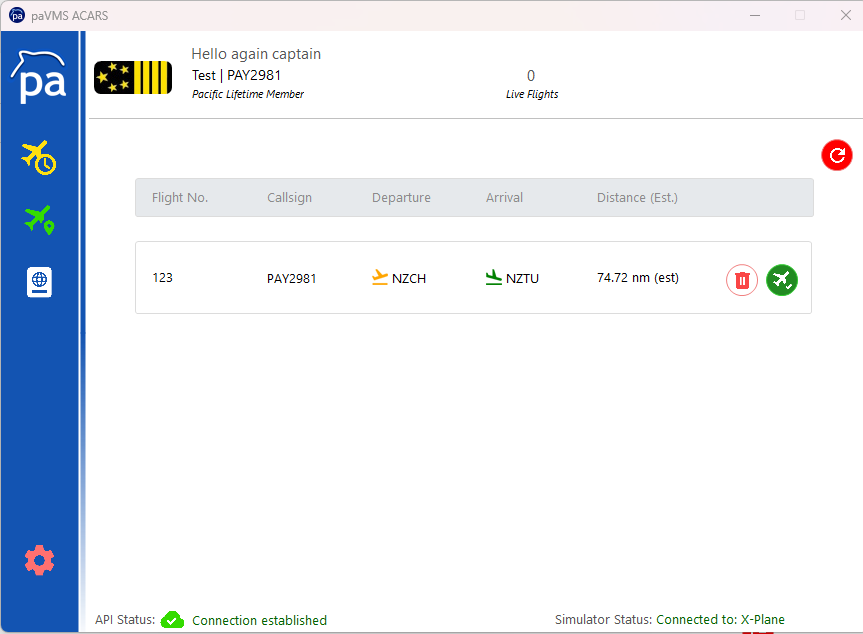](https://ops2.pacificairways.net/uploads/images/gallery/2026-10/acars-4.png) If you see something like this, you click on the [](https://ops2.pacificairways.net/uploads/images/gallery/2026-10/acars-5.png)icon, this will activate your flight booking and you will see the following. [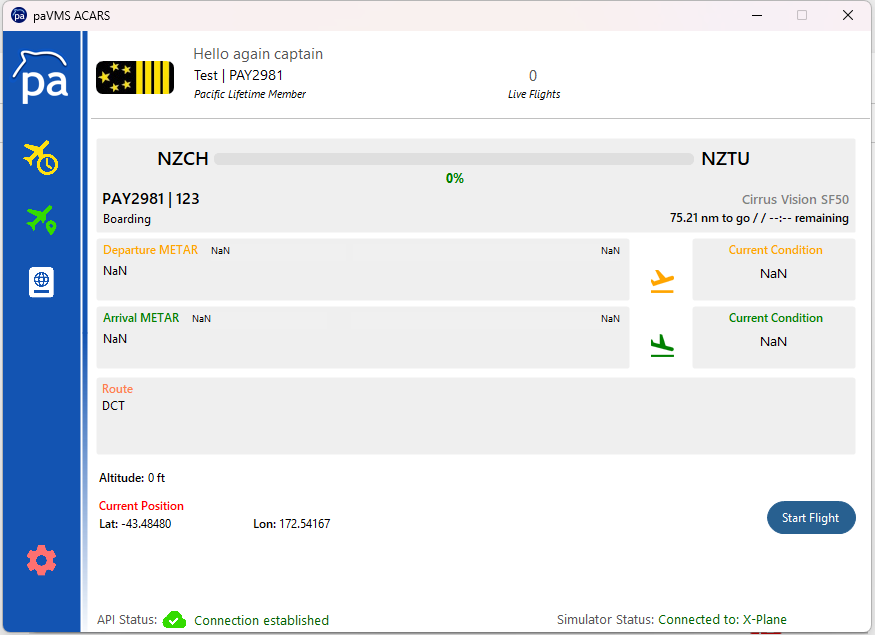](https://ops2.pacificairways.net/uploads/images/gallery/2026-10/acars-6.png) This is your flight tracker view that will show, here you will see the following: - Flight Status - Flight Progress - Departure / Arrival METAR (if available) - Current Position - Route (if available) - Altitute In order to start your flight you have to be on the **ground** in ***boarding*** state.Please ensure you have loaded all your fuel before hitting **Start Flight** or this could result in your flight being declined due to negative (-) fuel, as the ACARS takes a snapshot of FOB (fuel on board) at the start & the end of your flight.
You can also use our **Flight Autostart** feature buy taxiing out your flight will auto start after you have surpassed 7 (seven) knots (kt).
--- ##### Ending Flight In the same tracking window above instead of you seeing **Start Flight** you will instead see **End Flight**, you click on End Flight when you are in any of the following states: - Taxi In - Deboarding This will then end your flight and submit it to your account on our website.If you cannot click the **End Flight** button and you are/were in any of the above states you can refile your flight via your [**Logbook**](https://ops2.pacificairways.net/books/6-help/page/logbook) within the application at anytime as reaching these states will autostore your flight in the application database.
# Logbook If for some unexpected reson your flight does not submit to our website, we have added a local **logbook** to the ACARS client. This will allow you to **refile** a flight at anytime which will then submit your flight to the website and complete that flight. To access your logbook you click on the [](https://ops2.pacificairways.net/uploads/images/gallery/2026-10/acars-8.png) icon in the application. [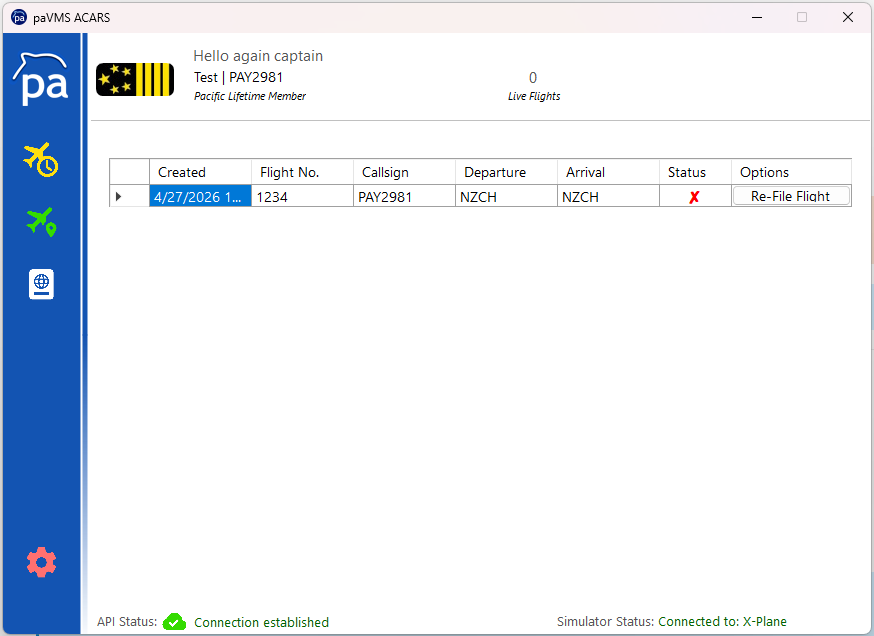](https://ops2.pacificairways.net/uploads/images/gallery/2026-10/acars-7.png) To refile a flight you only need to click on the **Re-File Flight** button and thats it, this will resend your flight data to our API and complete said flight.Please note: flights that have been successfully **landed** will show in your logbook, if the flight failed during the flight it will not show in your logbook and you will have to then submit a [**Manual PIREP.**](https://ops2.pacificairways.net/books/6-help/page/submitting-manual-pirep)