
Starting / Ending Flights
Once you have loaded the ACARS application, you will be greeted with the booking view.
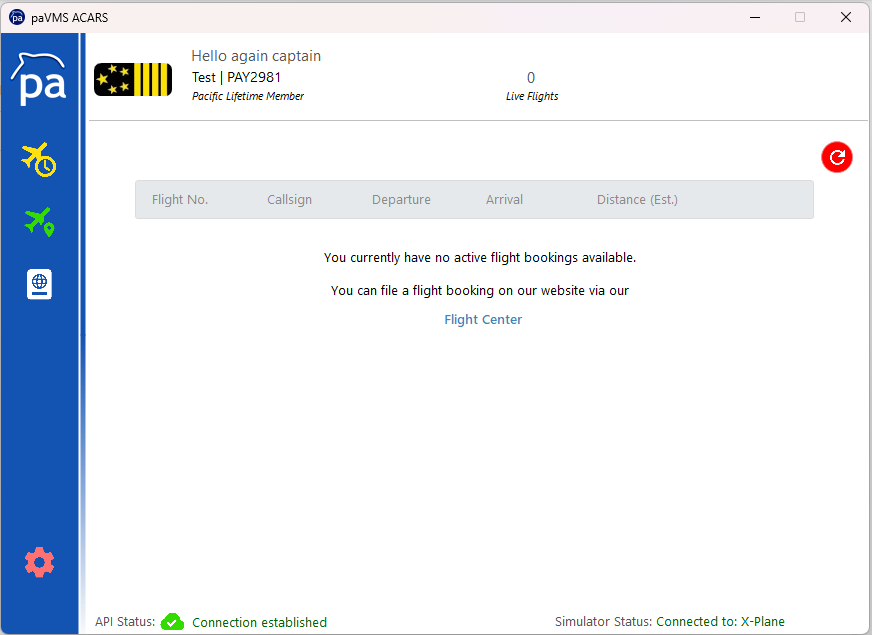
This is where your flight bookings will show, in order to have your booking show in the ACARS you need to create your flight on our website.
Once you have created your flight it will show in the bookings tab, to refresh your booking list, you can click on the  icon on the top right of the application.
Activating Flight Booking & Starting Flight
To activate a flight booking, in your bookings tab your flight will show like the following.
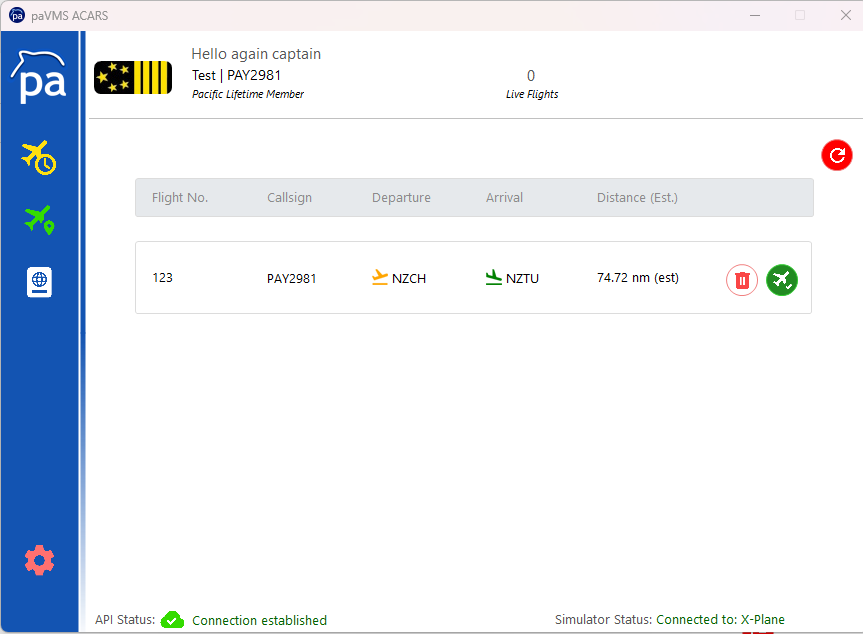
If you see something like this, you click on the  icon, this will activate your flight booking and you will see the following.
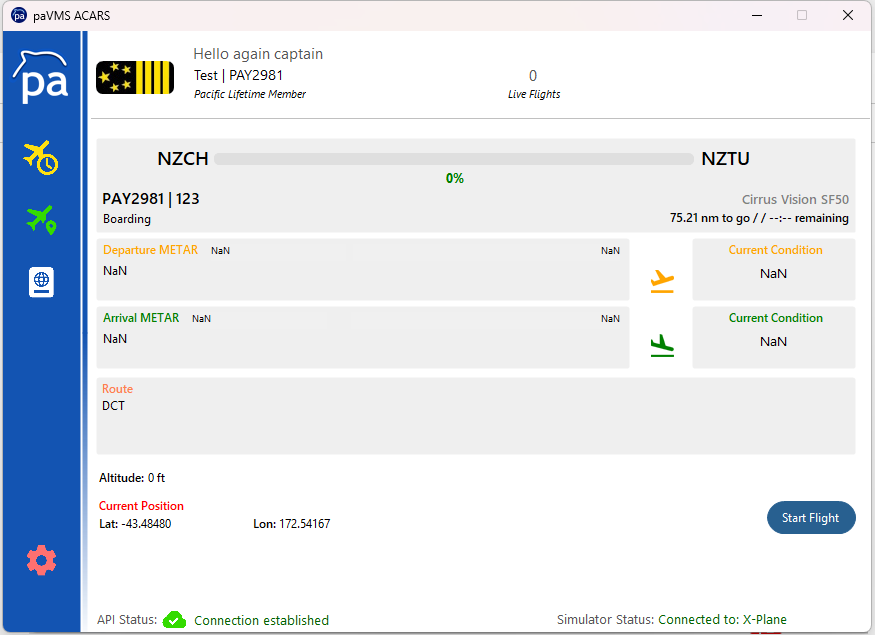
This is your flight tracker view that will show, here you will see the following:
- Flight Status
- Flight Progress
- Departure / Arrival METAR (if available)
- Current Position
- Route (if available)
- Altitute
In order to start your flight you have to be on the ground in boarding state.
Please ensure you have loaded all your fuel before hitting Start Flight or this could result in your flight being declined due to negative (-) fuel, as the ACARS takes a snapshot of FOB (fuel on board) at the start & the end of your flight.
You can also use our Flight Autostart feature buy taxiing out your flight will auto start after you have surpassed 7 (seven) knots (kt).
Ending Flight
In the same tracking window above instead of you seeing Start Flight you will instead see End Flight, you click on End Flight when you are in any of the following states:
- Taxi In
- Deboarding
This will then end your flight and submit it to your account on our website.
If you cannot click the End Flight button and you are/were in any of the above states you can refile your flight via your Logbook within the application as reaching these states will autostore your flight in the application database.